AI thumbnails that still look like your channel

Turn a video idea, your own photos, and a few plain-language directions into a custom YouTube-style thumbnail you can refine until the framing, expression, and message feel right.

  • Your face
  • Your source images
  • Plain-language edits
Creator reacting beside an AI tool result on a bright interface-inspired background

What makes a strong AI thumbnail?

A strong AI thumbnail makes one promise instantly: the viewer understands the topic, feels the tension or payoff, and can recognize the creator or subject at small size. For AI-focused videos, that usually means pairing a clear human reaction or recognizable source image with one visual idea—such as a workflow, result, experiment, tool comparison, or surprising outcome. Keep the wording short, make the main subject large, and give the design one obvious focal point.

Built for creators covering AI tools, workflows, tutorials, experiments, news, and practical results—not one-size-fits-all stock-style channel art.

Three thumbnail ideas for ai thumbnail

Each example explores a different visual direction and can be adapted with your own face, images, wording, and brand.

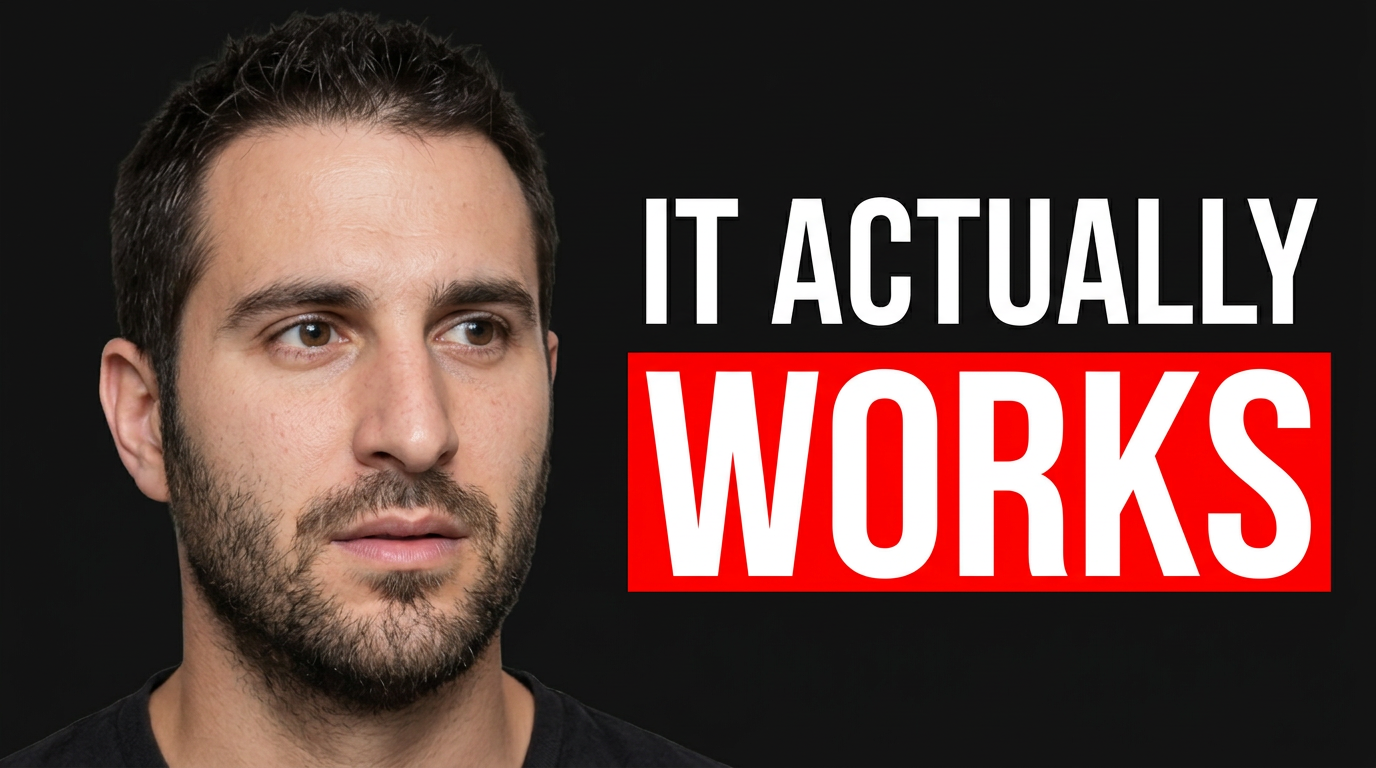
Creator reacting beside an AI tool result on a bright interface-inspired background

Tool test with a clear payoff

Put the finished result and your reaction in the same instant-read frame.

See the visual approach

Close-up of the supplied male creator on the left with an impressed, slightly disbelieving expression, looking toward a large supplied AI tool result on the right. Clean futuristic workspace background with soft cyan and electric blue accents, simplified interface shapes, strong separation between face and result, crisp high-contrast composition, one dominant visual focal point.
Make a thumbnail like this
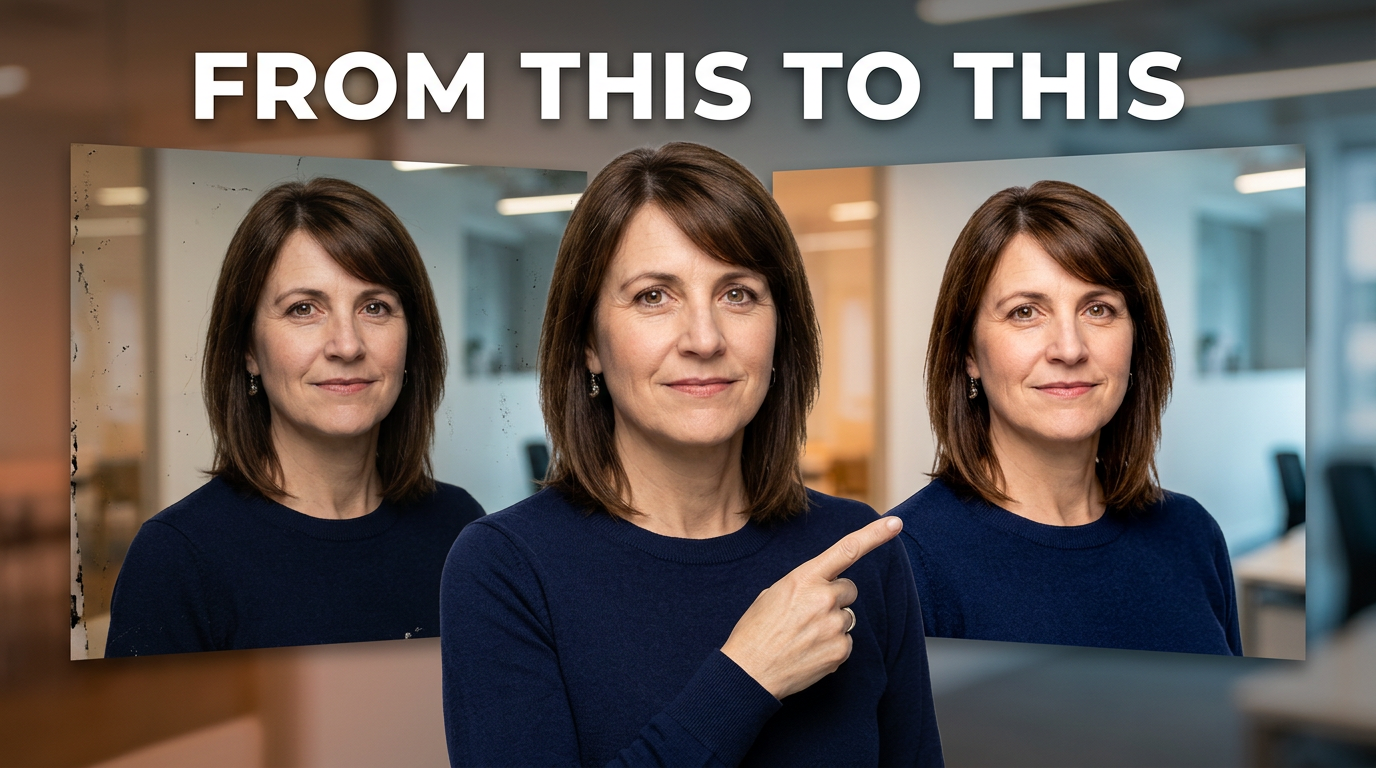
Creator pointing between a rough draft and polished AI-assisted result

Before-and-after AI workflow

Make the transformation—not the interface—the visual story.

See the visual approach

Supplied female creator centered between two large source-image panels: an imperfect rough starting point on the left and a polished finished result on the right. She points toward the improved result with a confident expression. Bright studio lighting, clean split composition, warm-to-cool color transition, uncluttered background, clear visual contrast between the two stages.

Make a thumbnail like this
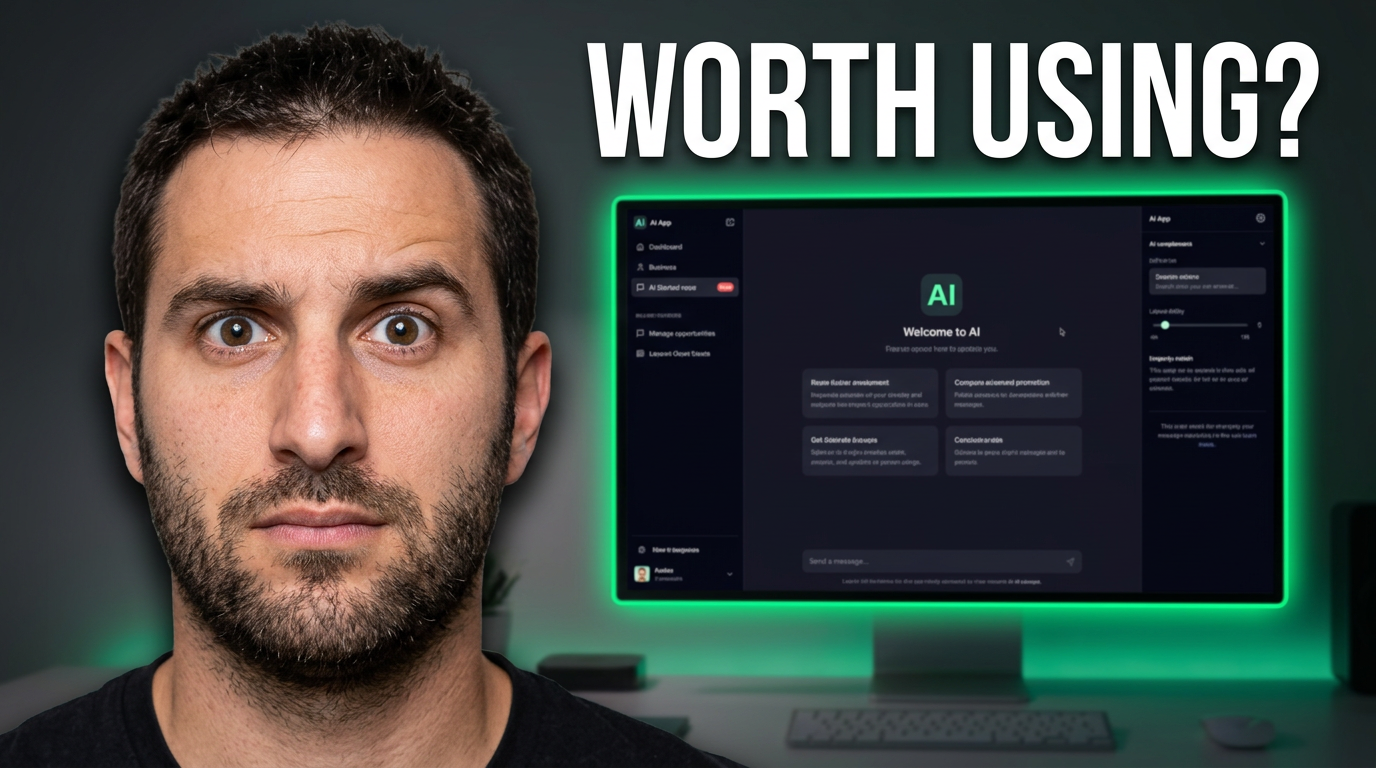
Creator with skeptical expression examining a featured AI app screen

Skeptical AI tool review

Give a review thumbnail one question and one unmistakable subject.

See the visual approach

Supplied male creator in the foreground with a skeptical raised-eyebrow expression, angled toward a large supplied AI app screen behind him. Dark charcoal background with a focused neon green rim light around the featured screen, subtle desk setting, dramatic but clean lighting, oversized creator and product emphasis, space reserved for short headline wording.

Make a thumbnail like this

These examples are starting points. Results vary based on your images, wording, and creative direction.

Thumbnail directions for AI content

Use your actual face, product screenshots, reference images, and exact headline text to shape a thumbnail around the angle of the video.

  • AI tool reviews that make the verdict easy to spot
  • Workflow tutorials that show the before-and-after outcome
  • Prompting and automation videos with a clear visual result
  • AI news updates with a focused reaction and one key subject
  • Creator experiments that highlight the unexpected result
  • Comparison videos that visually separate two tools or approaches
  • Practical AI lessons for work, design, coding, and content creation
  • Case-study videos that put the finished output front and center

A simple workflow you can reuse

  1. 1

    Add the materials viewers should recognize

    Upload your face, a tool interface, an example result, brand assets, or any source image that matters to the video. Thumbnail.AI can use those materials as the foundation instead of relying on vague visual stand-ins.

  2. 2

    Set the video’s strongest angle

    Describe the idea in straightforward language: what you tested, what changed, what viewers will learn, and the mood you want. Include the exact short wording you want visible on the thumbnail.

  3. 3

    Choose a clear composition

    Direct the focus: a close-up reaction, a large result preview, a split comparison, a dashboard detail, or a single featured tool. Keep secondary details supportive rather than competing with the main idea.

Frequently asked questions

Answers for building a useful, repeatable thumbnail workflow—not just generating one image.

Browse all thumbnail makers
Can I use my own face for AI-related YouTube thumbnails?

Yes. Upload a photo of yourself and direct how you should appear, such as surprised, skeptical, focused, or pointing toward a result or interface. Use a clear source photo with your face visible for the most recognizable outcome.

Can I include a screenshot of an AI tool in the thumbnail?

Yes. Upload the screenshot or relevant source image and describe its role in the composition—for example, large behind you, held up as the featured result, or placed on one side of a comparison. Use only images you have permission to use.

How much text should an AI thumbnail have?

Usually two to six words is enough. Let the video title carry the fuller explanation, while the thumbnail text communicates the tension, result, or verdict at a glance.

What should an AI tool comparison thumbnail show?

Use a simple two-sided layout with one recognizable visual difference: two interface panels, two outputs, or two opposing reactions. Avoid filling the image with tiny UI details that will disappear on mobile.

Can I revise a thumbnail when the first direction is close but not right?

Yes. Refine the direction in plain language. Ask for a different expression, tighter crop, larger source image, simpler background, stronger contrast, or a new emphasis while keeping the materials and message consistent.

Make your next AI video thumbnail unmistakable

Bring your face, your source images, and the exact message you want viewers to see. Create a custom thumbnail direction in Thumbnail.AI, then refine it for your channel.

Create a thumbnail in Thumbnail.AI