Create YouTube Thumbnails With AI That Still Look Like You

Turn your footage, face photos, product shots, and thumbnail idea into a custom visual built around the exact story your video needs to sell.

  • Your face
  • Your source images
  • Plain-language edits
Male creator reacting beside a large laptop interface in a dramatic blue studio thumbnail.

What should an AI thumbnail generator help you control?

A useful AI thumbnail generator should do more than produce a random image. It should let you direct the concept, include your own face or source material, preserve the subject of the video, and place the short wording viewers need to understand at a glance. Thumbnail.AI is built for creators who want a YouTube-style thumbnail they can shape and revise—not a generic visual detached from their channel.

For YouTube creators, editors, educators, reviewers, streamers, and channel teams who need each video’s packaging to match the actual content and their recognizable on-screen identity.

Three thumbnail ideas for ai thumbnail generator

Each example explores a different visual direction and can be adapted with your own face, images, wording, and brand.

Male creator reacting beside a large laptop interface in a dramatic blue studio thumbnail.

Creator tool reveal

Frame a software reveal around a creator reaction and the product interface.

See the visual approach

Close-up male creator with a wide-eyed, impressed expression on the left side, gesturing toward a large laptop on the right with a clean abstract creator-software interface; dark blue studio background, electric rim light, bold contrast, spacious composition, clear focal emphasis on the creator and screen.

Make a thumbnail like this
Female educator smiling confidently beside an organized workflow board in a bright home studio thumbnail.

Tutorial breakthrough

Use a reassuring expert expression for a practical tutorial or workflow fix.

See the visual approach

Friendly female educator in the foreground with a confident relieved smile, pointing toward a large organized digital workflow board; bright modern home studio, warm daylight, tidy desk elements, approachable expert mood, clean composition with the board clearly visible.

Make a thumbnail like this
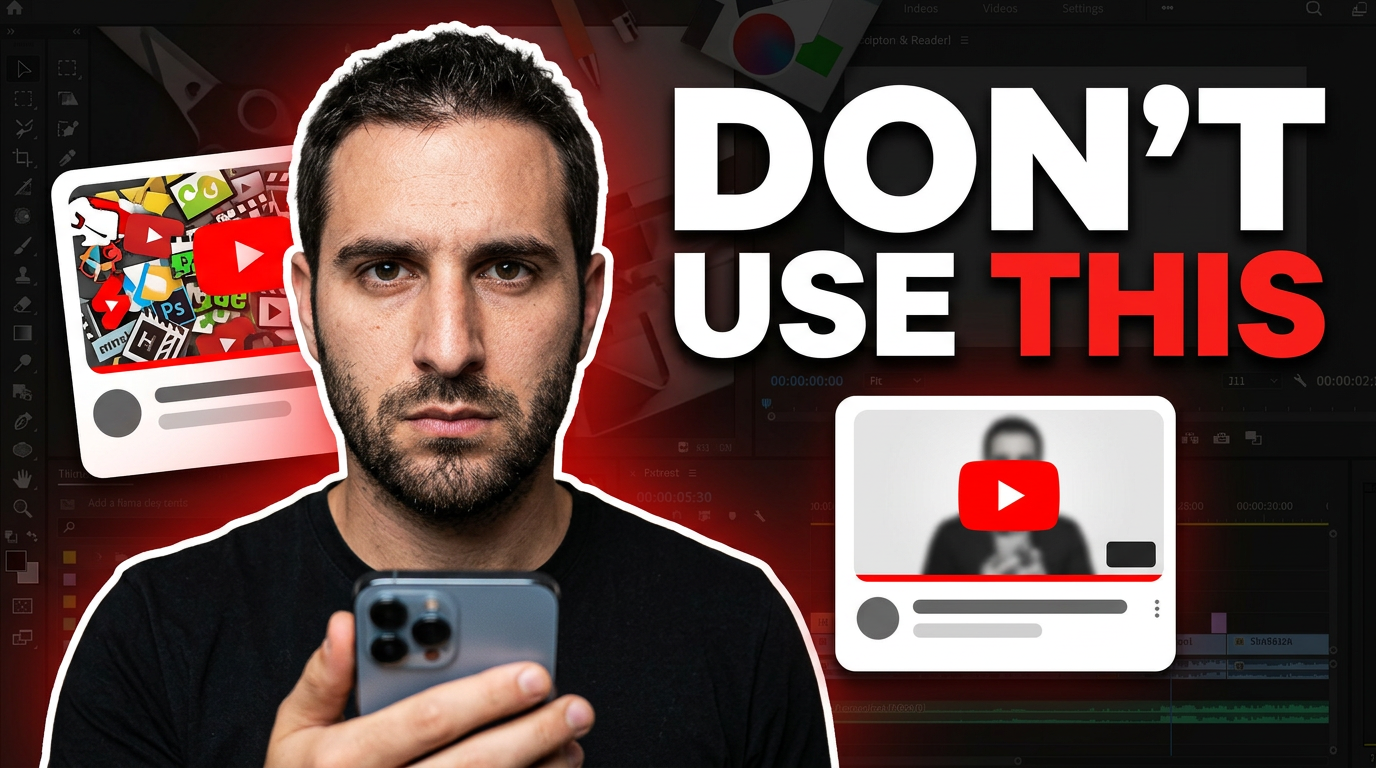
Male creator holding a phone with a warning expression beside two contrasting thumbnail examples.

Honest thumbnail review

Make a critique video feel direct by contrasting a weak choice with a better visual direction.

See the visual approach

Male creator in a close crop with a serious warning expression, holding a smartphone toward the camera; two simplified contrasting video-thumbnail cards floating behind him, one visually cluttered and one clean and focused; dark editorial background, red warning accent, sharp lighting, strong emphasis on the creator and comparison.

Make a thumbnail like this

These examples are starting points. Results vary based on your images, wording, and creative direction.

Build thumbnails around the decision a viewer makes

Strong video packaging gives the viewer one immediate reason to click. Use Thumbnail.AI to develop a clear visual hierarchy around the people, proof, objects, and stakes that matter in your upload.

  • Use your own face photo for a recognizable creator-led thumbnail
  • Bring in screenshots, product images, charts, or video stills when they are central to the story
  • Choose short, deliberate wording instead of trying to summarize the whole video
  • Direct expressions, framing, contrast, background setting, and subject emphasis in plain language
  • Create alternate concepts when a video can be positioned around a result, comparison, reveal, or strong opinion
  • Revise the thumbnail direction as the title, edit, or channel style changes before publishing your video.
  • Keep visual details tied to what the video actually covers so the thumbnail sets an accurate expectation.
  • Make the main subject readable at small sizes with one clear focal point.

A simple workflow you can reuse

  1. 1

    Start with the video’s click-worthy idea

    Identify the one question, outcome, mistake, comparison, or reveal that a viewer should understand before they read the title.

  2. 2

    Add the materials that make it yours

    Upload a face photo, logo, product image, screenshot, or other source visual when those elements should appear in the composition.

  3. 3

    Describe the scene plainly

    Specify who should be visible, what should be emphasized, the setting, emotion, crop, and overall visual energy you want for the video.

Frequently asked questions

Answers for building a useful, repeatable thumbnail workflow—not just generating one image.

Browse all thumbnail makers
Can I use my own face in an AI thumbnail?

Yes. Add a suitable face photo and direct how you want to appear, such as a close reaction crop, a confident presenter pose, or a side-by-side comparison setup. A clear, well-lit source photo gives the thumbnail concept more useful reference material.

Can I make a thumbnail from a product shot or video screenshot?

Yes. Source images are especially useful for software tutorials, reviews, challenges, makeovers, tutorials, and results-focused videos. Include the important image, then explain whether it should be the hero object, a background detail, or evidence beside you.

How much text should an AI-generated YouTube thumbnail use?

Keep visible wording short enough to scan quickly—usually a few words that add tension, clarify the payoff, or frame the comparison. Let the title handle the fuller explanation rather than filling the image with text.

What should I write when describing a thumbnail?

Name the subject, the central object or proof, the environment, the expression or mood, and what needs to stand out first. For example, describe a surprised presenter holding a phone beside a large app dashboard, with a dramatic before-and-after contrast.

Can I revise a thumbnail concept after I change my video title?

Yes. When the title changes, revise the visual direction so the image and title work together. You may shift the emphasis from a feature to a result, replace a background image, alter the expression, or simplify the visible wording.

Make the thumbnail fit the video

Bring your face, source images, and a clear creative direction to Thumbnail.AI, then create a custom YouTube-style thumbnail you can refine for your channel.

Create a thumbnail in Thumbnail.AI