AI Thumbnail Maker for Thumbnails That Still Look Like You

Turn a rough video idea, your own photos, and the words you want on-screen into a custom thumbnail concept. Direct the composition in plain language, then refine it until it fits your channel.

  • Your face
  • Your source images
  • Plain-language edits
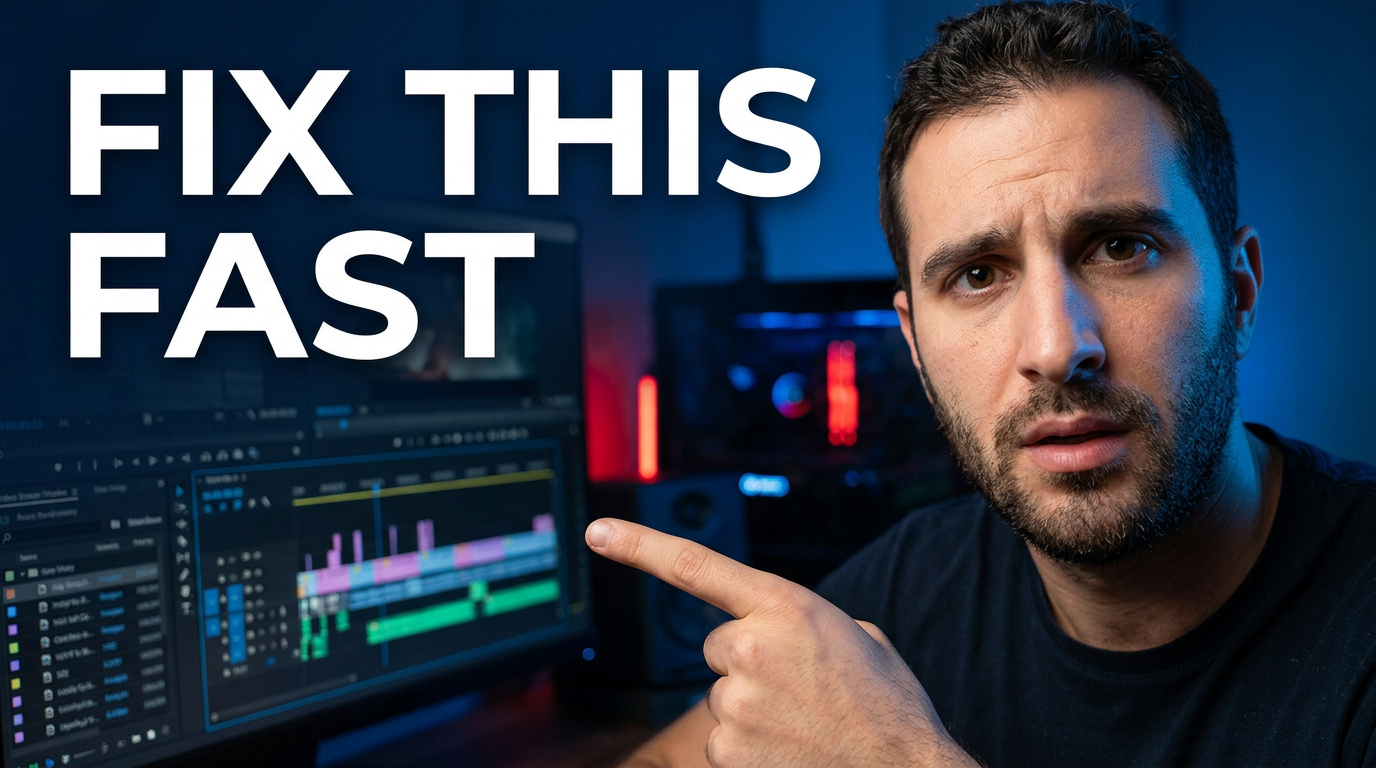
Male creator pointing at a large blurred editing timeline with a focused expression

What is an AI thumbnail maker?

An AI thumbnail maker helps creators turn a video topic into a thumbnail concept without starting from a blank canvas. In Thumbnail.AI, you can provide a face photo or source image, specify the exact wording to show, and describe the visual direction you want—such as a close-up reaction, a product comparison, a dramatic background, or a clean expert-led layout. The result is a custom starting point you can revise for expression, emphasis, color, composition, and text treatment.

Built for YouTube creators, educators, reviewers, streamers, podcasters, and teams that need thumbnail ideas shaped around their actual footage, faces, topics, and brand feel.

Three thumbnail ideas for ai thumbnail maker

Each example explores a different visual direction and can be adapted with your own face, images, wording, and brand.

Male creator pointing at a large blurred editing timeline with a focused expression

Tutorial outcome thumbnail

Put the promised result beside a clear, expressive creator portrait.

See the visual approach

Close-up male creator with a focused, urgent expression pointing toward a large video-editing timeline on a monitor; dark studio background with subtle red and blue accent lighting; strong separation between the creator and screen; polished YouTube tutorial composition with the timeline as the secondary focal point.
Make a thumbnail like this
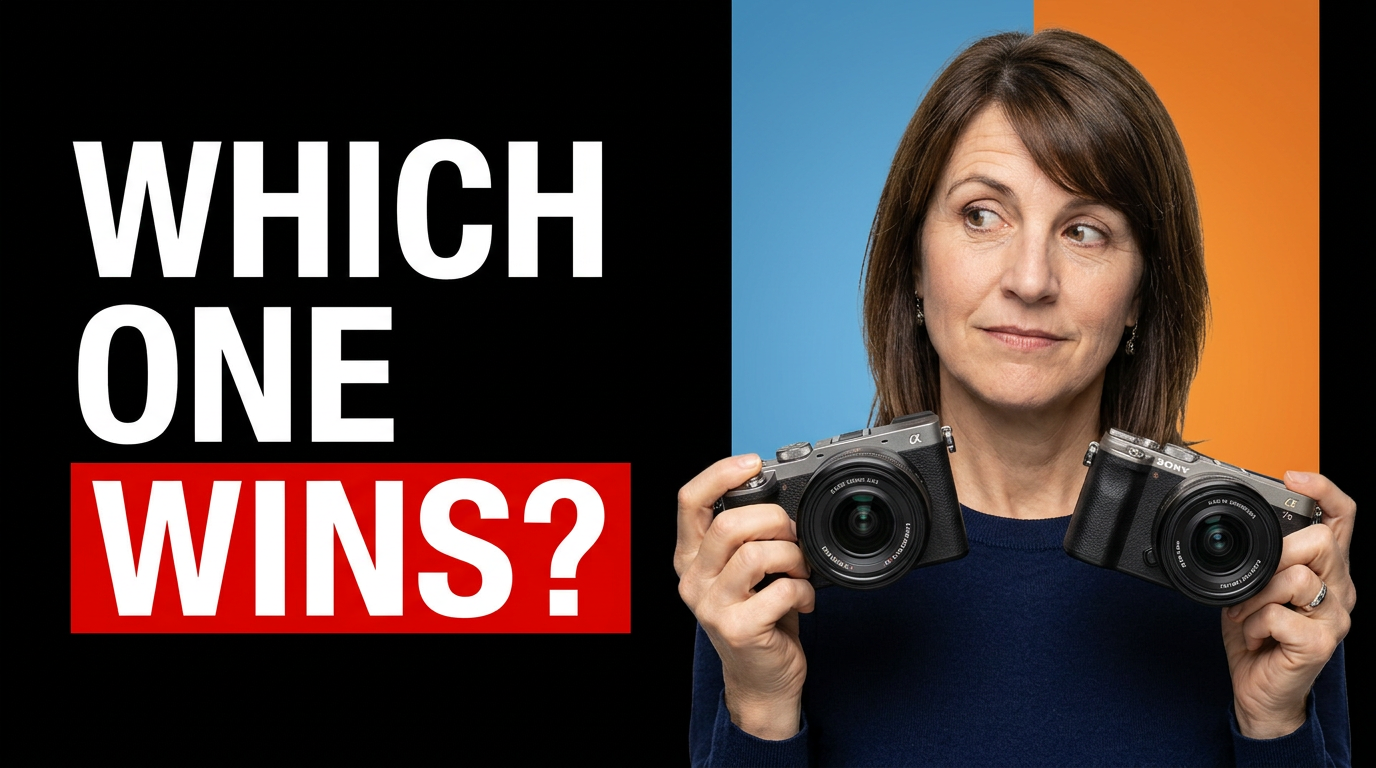
Female reviewer holding two compact cameras against a bright split-color backdrop

Product comparison thumbnail

Frame the decision visually with two products and a decisive reviewer reaction.

See the visual approach

Female tech reviewer centered between two compact cameras held at equal height; one side of the background cool blue and the other warm orange; curious, evaluative expression; clean studio lighting; crisp product detail and an obvious side-by-side comparison composition.

Make a thumbnail like this
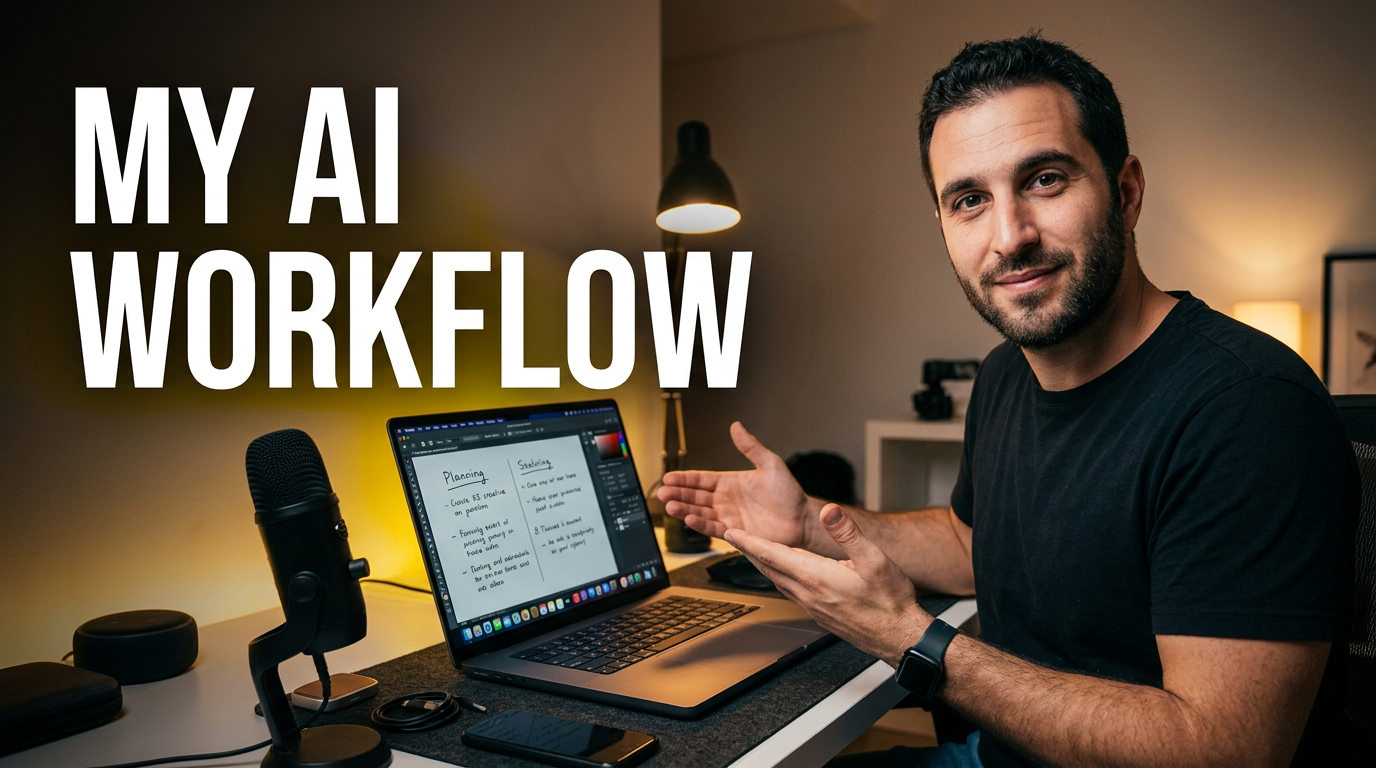
Male creator at a desk with a laptop, notes, and a glowing creative workspace

Creator workflow thumbnail

Show the person and the working environment behind a practical creator process.

See the visual approach

Male creator seated at a clean desk, looking confidently toward a laptop with a creative workspace visible; handwritten planning notes, microphone, and subtle desktop accessories; warm practical lighting with a modern home-studio atmosphere; inviting behind-the-scenes composition focused on the creator and process.

Make a thumbnail like this

These examples are starting points. Results vary based on your images, wording, and creative direction.

Make a thumbnail around the real point of your video

A strong thumbnail gives viewers one clear visual reason to click. Use Thumbnail.AI to explore focused directions for content like:

  • Tutorials that highlight the outcome or breakthrough
  • Product reviews and side-by-side comparisons
  • Gaming videos with a clear moment of tension or surprise
  • Educational explainers that make a complex topic feel approachable
  • Commentary and reaction videos centered on a real expression
  • Podcast clips and interviews that establish the conversation quickly
  • Launches, announcements, and channel updates with a bold focal point
  • Before-and-after transformations using your original images

A simple workflow you can reuse

  1. 1

    Add your video context and assets

    Start with the topic, a working title, or a short description. Upload a face photo, product image, screenshot, logo, or other source material when it matters to the concept.

  2. 2

    Set the words and creative direction

    Enter the exact short phrase you want visible on the thumbnail. Then describe the scene in everyday language: who should appear, what should be emphasized, the mood, background, framing, and visual energy.

  3. 3

    Create and revise the concept

    Use the generated direction as a custom starting point. Ask for changes such as a closer crop, stronger reaction, simpler background, different emphasis, or a more polished channel-ready look.

Frequently asked questions

Answers for building a useful, repeatable thumbnail workflow—not just generating one image.

Browse all thumbnail makers
Can I use my own face in an AI thumbnail?

Yes. Upload a clear photo of yourself and direct how you want to appear, such as a close-up reaction, a confident presenter pose, or a cutout-style portrait beside a key visual. Using your own image helps keep the thumbnail connected to your channel.

Can I control the words that appear on the thumbnail?

Yes. Provide the exact short wording you want displayed. Keep it concise so it can stay readable at small sizes, then use the visual composition to carry the rest of the idea.

What source images can I include?

You can work from relevant images such as a headshot, product photo, game screenshot, app interface, chart, book cover, listing image, or an image from your video. Use images you have the right to use.

How should I describe a thumbnail idea to AI?

State the main subject, the intended reaction or mood, the item or result to emphasize, and the environment or background. For example, describe a creator reacting to a dashboard on a monitor with dramatic lighting and one clear focal point. Add your source images when visual accuracy matters.

Can I make different thumbnail concepts for the same video?

Yes. Try distinct angles around the same topic: a face-led reaction, a product or result-led layout, and a curiosity-driven comparison. This helps you choose a direction that matches the video’s actual hook.

Is this only for YouTube?

The layouts are designed with YouTube-style thumbnails in mind, but you can also create visual concepts for video platforms, course lessons, podcast clips, livestream replays, and social video promotions.

Make your next thumbnail with AI—and keep it yours

Bring your topic, your face, your source images, and your exact words. Create a custom thumbnail direction in Thumbnail.AI, then revise the details in plain language.

Create a thumbnail in Thumbnail.AI