Create a YouTube Thumbnail That Fits Your Video

Turn your video topic, face, images, and exact wording into a custom YouTube-style thumbnail you can refine with plain-language feedback.

  • Your face
  • Your source images
  • Plain-language edits
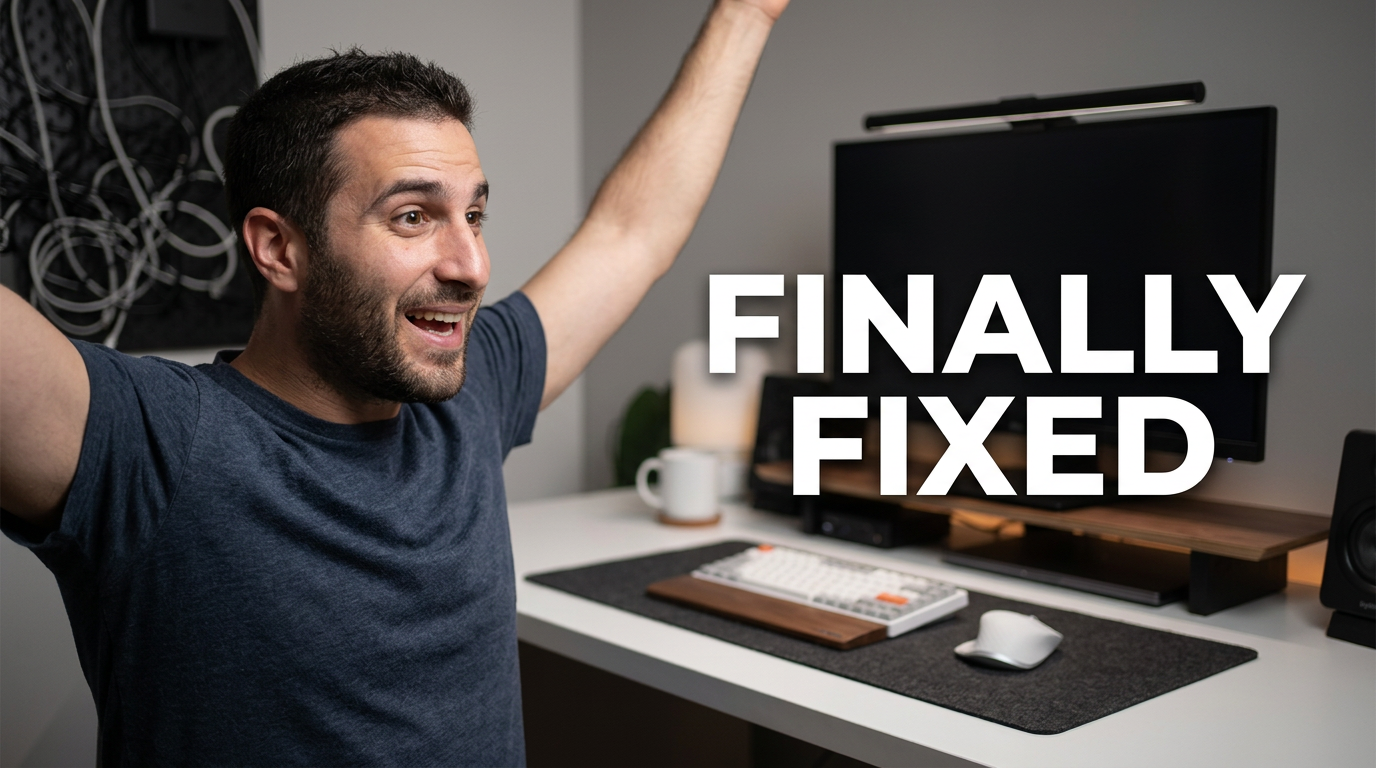
Creator reacting beside a repaired home studio desk setup

How to create a YouTube thumbnail

Start with one clear video promise: the result, question, comparison, or moment a viewer should understand at a glance. Choose a strong subject image—often your face, a product, a screenshot, or the main visual from the video—then pair it with a short, readable phrase. In Thumbnail.AI, upload the source material, specify the wording exactly, and describe the layout, expression, background, and mood you want. Revise details such as text placement, crop, color contrast, and emphasis until the thumbnail matches the video.

Built for creators making tutorials, reviews, commentary, gaming videos, vlogs, explainers, and other YouTube content that needs a clear visual hook.

Three thumbnail ideas for youtube creators

Each example explores a different visual direction and can be adapted with your own face, images, wording, and brand.

Creator reacting beside a repaired home studio desk setup

Tutorial result reveal

A result-focused design for a troubleshooting or setup tutorial.

See the visual approach

Include the assigned male creator in a relieved, excited reaction on the left, looking toward a clean repaired desk setup on the right. Show a visible contrast between a subtle tangled-cable problem area and the organized final workspace, with a bright home-studio environment, strong subject separation, and open space for short wording. Use supplied desk and creator source images where available.
Make a thumbnail like this
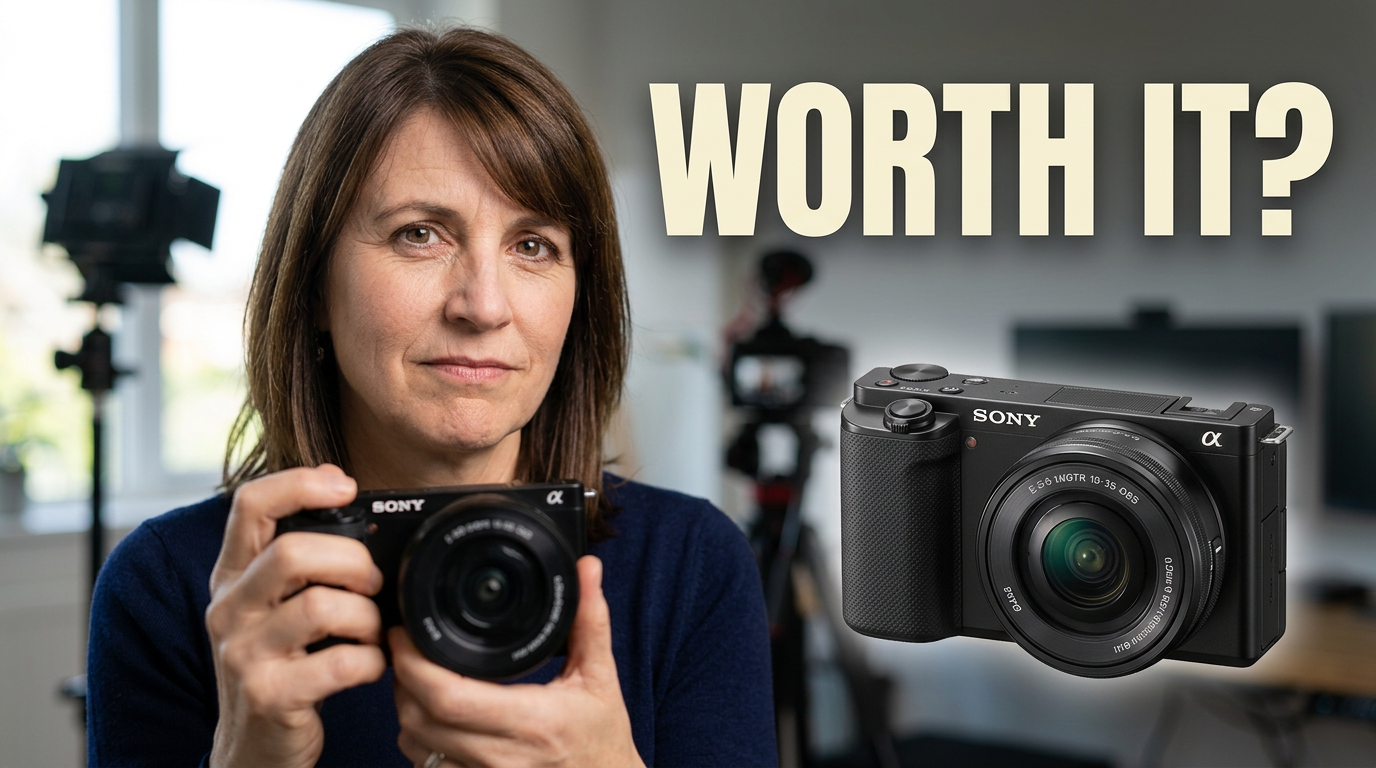
Creator holding a compact creator camera with a skeptical expression

Honest product review

A direct review concept that centers the product and the creator’s verdict.

See the visual approach

Include the assigned female creator in the foreground holding the supplied compact camera close to the lens with a thoughtful, skeptical expression. Place a crisp product close-up beside her against a softly blurred filming workspace, using a clean high-contrast composition and a restrained premium mood. Leave a clear text area and make the camera the visual priority.

Make a thumbnail like this
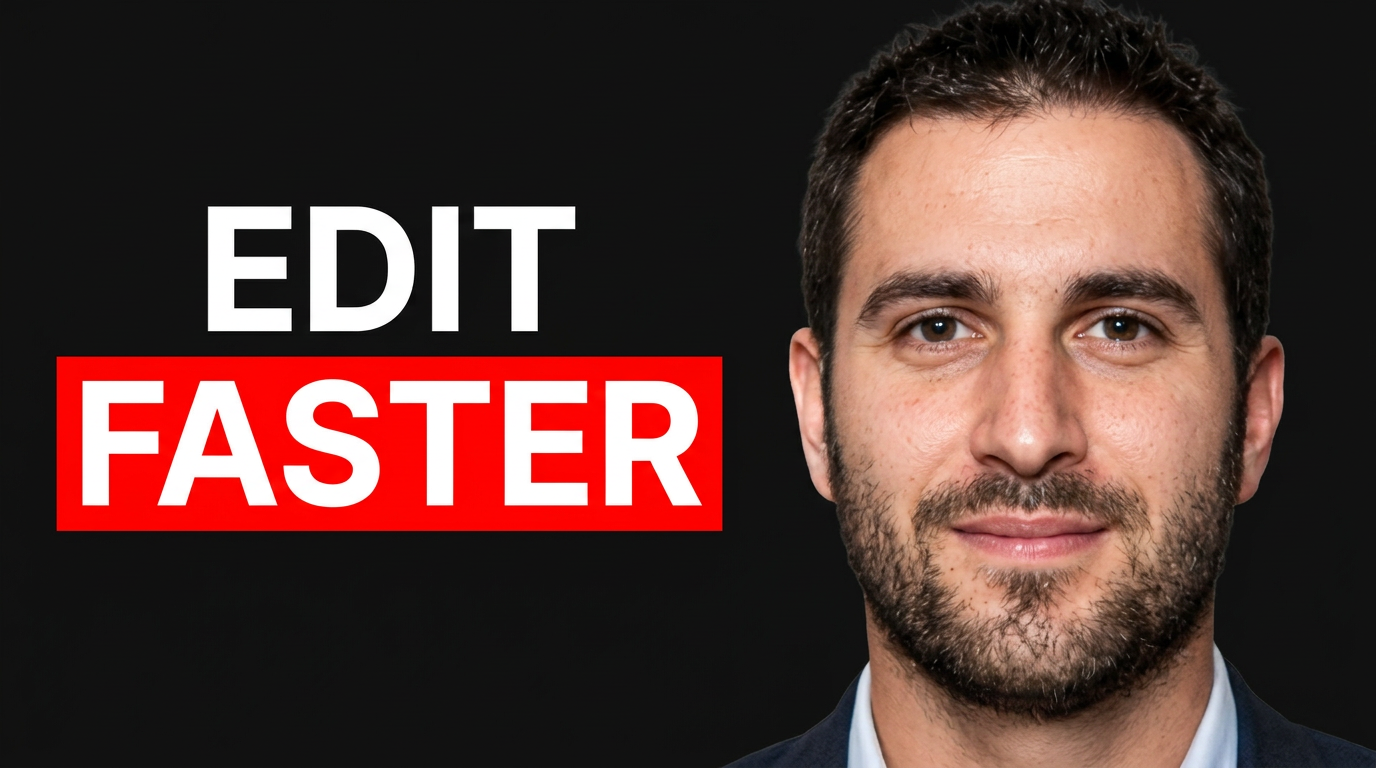
Creator comparing a cluttered editing timeline with an organized workstation

Before-and-after creator workflow

A transformation layout for a workflow, software, or productivity video.

See the visual approach

Include the assigned male creator at a desk in an energetic pointing pose, positioned between a cluttered editing timeline and a streamlined organized workspace. Use a dramatic split composition, with the messy side darker and the improved side brighter, while keeping the supplied screen and workspace material recognizable. Make the visual change obvious at a small size and reserve room for short wording.

Make a thumbnail like this

These examples are starting points. Results vary based on your images, wording, and creative direction.

What to emphasize in your thumbnail

The strongest direction comes from the video’s actual angle. Give each design one dominant idea rather than trying to summarize every point.

  • A visible outcome or transformation, such as a finished setup, before-and-after result, or surprising reveal
  • Your on-camera reaction when personality and emotion are central to the video
  • The product, app, tool, game, or object viewers came to see
  • A clear comparison between two choices, methods, or results
  • A recognizable source image, screenshot, chart, or photo that supports the video’s premise
  • Short exact wording that adds context without repeating the full title
  • Color and composition that make the main subject easy to notice at small sizes
  • A layout that leaves room for YouTube interface cropping and keeps important details away from the edges

A simple workflow you can reuse

  1. 1

    Choose the one idea viewers should notice first

    Use the video’s most compelling result, tension, question, or comparison as the thumbnail’s central message. Keep secondary details out unless they make that idea clearer.

  2. 2

    Gather the right source material

    Upload a sharp photo of yourself, product photos, screenshots, game art, or other assets you have permission to use. Select the image that communicates the topic fastest.

  3. 3

    Set the exact thumbnail wording

    Write a short phrase that adds curiosity or clarity. Provide the wording exactly as it should appear, including capitalization, punctuation, and any important numbers.

Frequently asked questions

Answers for building a useful, repeatable thumbnail workflow—not just generating one image.

Browse all thumbnail makers
What size should a YouTube thumbnail be?

Use a 16:9 layout. YouTube commonly recommends 1280 × 720 pixels, with a minimum width of 640 pixels. Keep the main face, object, and wording large enough to remain understandable on mobile.

How much text should I put on a YouTube thumbnail?

Usually a few words are enough. Use text to sharpen the video’s promise, result, or contrast, not to restate the entire title. If the image already explains the idea, use even less text.

Can I use my own face and screenshots?

Yes. Upload your own face photo, video still, product image, screenshot, or other relevant source asset, then describe how you want it used in the composition.

How do I make a thumbnail match my video title?

Let the title provide detail and let the thumbnail provide the visual hook. For example, a title can explain the full challenge while the thumbnail highlights the most surprising result, reaction, or comparison.

What should I ask Thumbnail.AI to revise?

Be direct about the change: request a larger face, a different expression, less background detail, stronger contrast, a different crop, a moved text area, or greater emphasis on a specific object. Include the exact wording whenever text matters.

Create your custom YouTube thumbnail

Upload your images, add the exact text you want, and describe the look that fits your video. Then refine the result with clear, specific direction in Thumbnail.AI.

Create a thumbnail in Thumbnail.AI