Custom thumbnails that look like your channel

Turn your face, source images, topic, and exact thumbnail wording into a custom YouTube-style visual—then refine the details with plain-language feedback.

  • Your face
  • Your source images
  • Plain-language edits
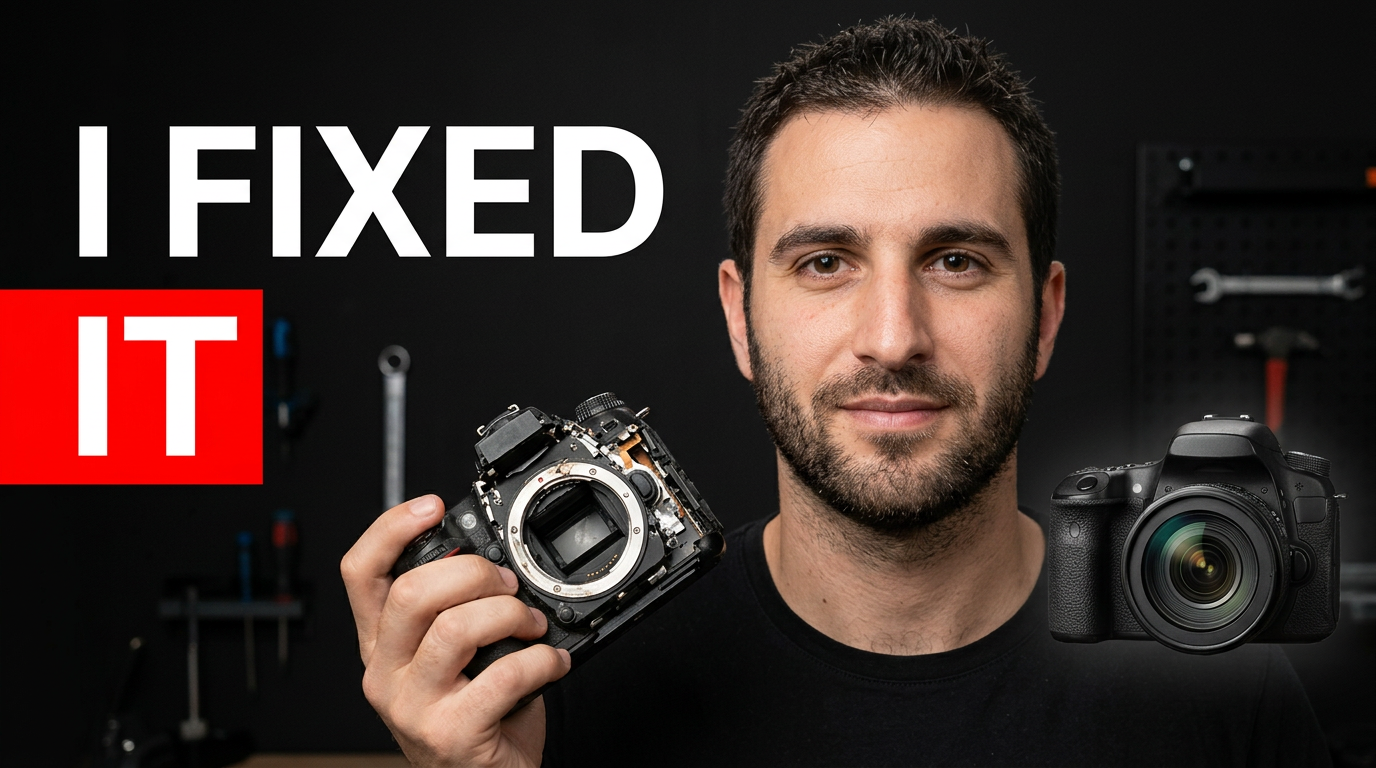
Creator holding a repaired camera beside a damaged version in a dramatic workshop thumbnail composition.

Make a custom thumbnail without forcing your idea into a template

A custom thumbnail starts with the parts viewers should recognize: your face, your subject, your product, your location, or a specific image from the video. Thumbnail.AI helps you combine those inputs with your own wording and direction, so the final concept can match the story you are actually publishing. Ask for a tighter crop, a clearer focal point, a different background, stronger contrast, or a more polished mood without rebuilding the idea from scratch.

Built for YouTube creators, educators, reviewers, streamers, and channel teams who want thumbnail visuals tailored to a specific video rather than a one-size-fits-all design.

Three thumbnail ideas for custom thumbnail

Each example explores a different visual direction and can be adapted with your own face, images, wording, and brand.

Creator holding a repaired camera beside a damaged version in a dramatic workshop thumbnail composition.

Transformation or result video

Put the before-and-after result at the center of the story.

See the visual approach

Use the supplied male creator as a large, expressive foreground subject in a workshop setting. Place a damaged camera on one side and the restored camera prominently on the other, with a clean visual contrast between failure and finished result. Use dramatic directional lighting, a tight composition, and a high-stakes but satisfying mood. Keep the restored camera as the strongest secondary focal point.

Make a thumbnail like this
Female creator evaluating a compact gadget against a clean studio background with a skeptical expression.

Honest product review

Make the reviewer’s reaction and the product equally easy to identify.

See the visual approach

Use the supplied female creator in a close, skeptical presenter pose, looking toward the supplied compact gadget held near the foreground. Set the scene in a clean modern studio with soft depth and restrained background details. Make the gadget crisp and recognizable, with balanced composition that gives equal importance to her reaction and the product. Use polished lighting and an honest, evaluative mood.

Make a thumbnail like this
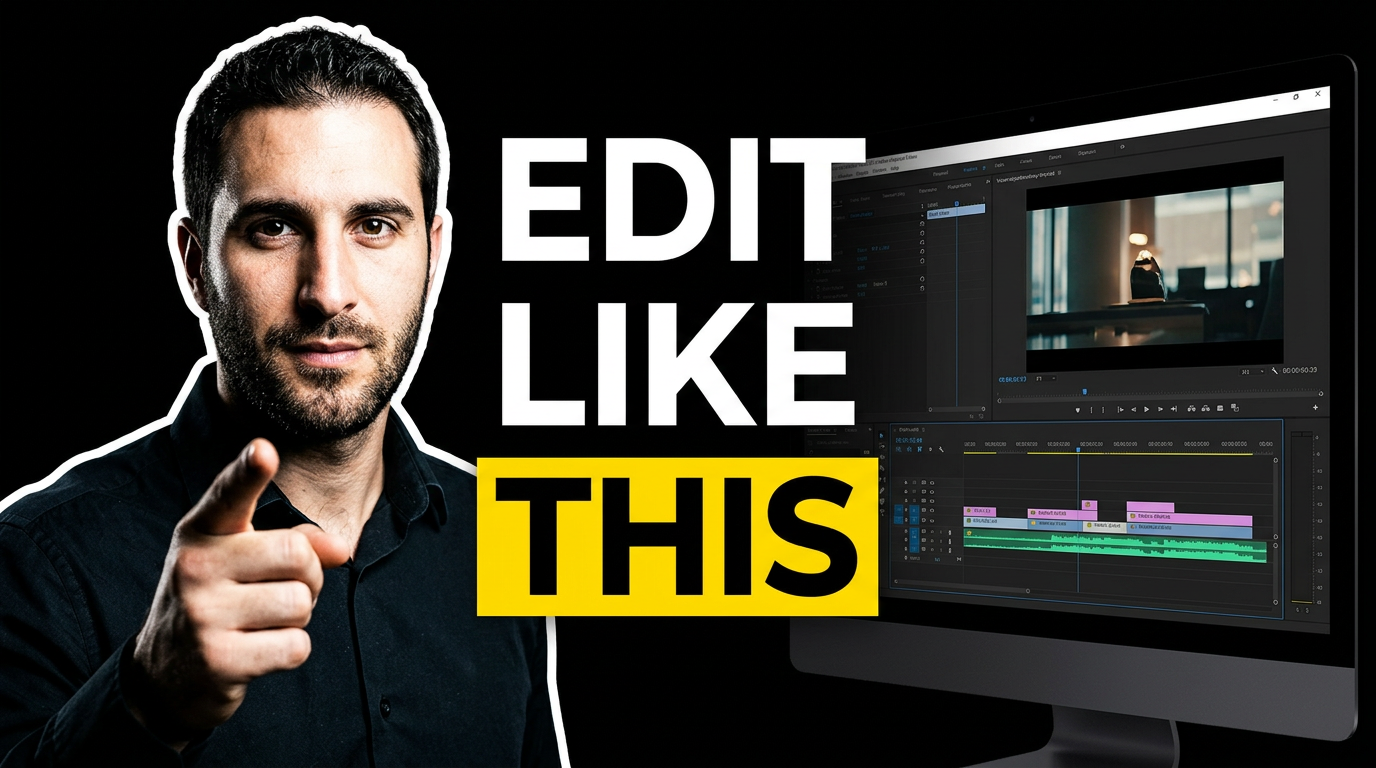
Male creator pointing toward a bright video editing timeline on a monitor in a focused desk setup.

Tutorial with a clear outcome

Show the finished skill visually before viewers open the video.

See the visual approach

Use the supplied male creator at a desk, pointing confidently toward a large monitor displaying a recognizable video editing timeline and polished preview frame. Frame his face and hand clearly in the foreground while the monitor remains readable as the main teaching context. Use a focused creator workspace, crisp lighting, subtle depth, and a clear instructional mood. Emphasize the relationship between the presenter and the editing screen.

Make a thumbnail like this

These examples are starting points. Results vary based on your images, wording, and creative direction.

What to customize for each video

Give Thumbnail.AI the details that matter most to the viewer at a glance.

  • Your own face or a collaborator’s face
  • Product photos, screenshots, props, or video stills
  • The exact short phrase you want visible
  • A visual mood, from polished and professional to dramatic and playful
  • The main reveal, comparison, challenge, result, or question
  • Follow-up revisions such as a closer crop, cleaner background, or bigger subject
  • A look that stays recognizable across your channel while fitting the individual video topic
  • Subject placement and open space for readable thumbnail wording

A simple workflow you can reuse

  1. 1

    Add the source material viewers should recognize

    Upload your face, a product shot, a screenshot, a video still, or other relevant images. Start with the people and objects that make this particular video distinct.

  2. 2

    Describe the thumbnail idea in everyday language

    Explain the story you want the image to communicate: a surprising result, a side-by-side comparison, a difficult test, a tutorial outcome, or a strong opinion.

  3. 3

    Set the exact wording

    Provide the short on-image phrase you want used. Keep it brief enough to read quickly on a small screen and make sure it supports the visual instead of repeating the entire title.

Frequently asked questions

Answers for building a useful, repeatable thumbnail workflow—not just generating one image.

Browse all thumbnail makers
Can I use my own face in a custom thumbnail?

Yes. Upload a clear photo of yourself and describe how you want to appear, such as a close-up reaction, a confident presenter pose, or a cutout beside a product or screenshot.

Can I include a product, app screenshot, or image from my video?

Yes. Source images can anchor the composition and make the thumbnail specific to the video. Upload the product image, screenshot, or still and explain what should receive the most attention.

How much text should a custom YouTube thumbnail have?

Usually, use a short phrase that can be understood quickly at small sizes. A few strong words often work better than a full sentence, especially when the image already communicates the topic.

Can I request revisions after the first concept?

Yes. Use plain-language feedback to request changes such as a larger face, a less busy background, a different expression, more space around the subject, stronger contrast, or a new visual emphasis.

How do I keep custom thumbnails consistent across my channel?

Reuse the visual choices viewers associate with your content, such as framing, color direction, facial crop, background treatment, and text placement. Then adapt the subject and message to each new video.

Create a custom thumbnail around your video

Bring your face, source images, exact wording, and creative direction together in Thumbnail.AI—then refine the concept until it fits the story you want viewers to notice.

Create a thumbnail in Thumbnail.AI