Create scroll-stopping thumbnails with AI

Turn a video idea into a custom YouTube-style thumbnail using your own face, source images, exact wording, and plain-language direction.

  • Your face
  • Your source images
  • Plain-language edits
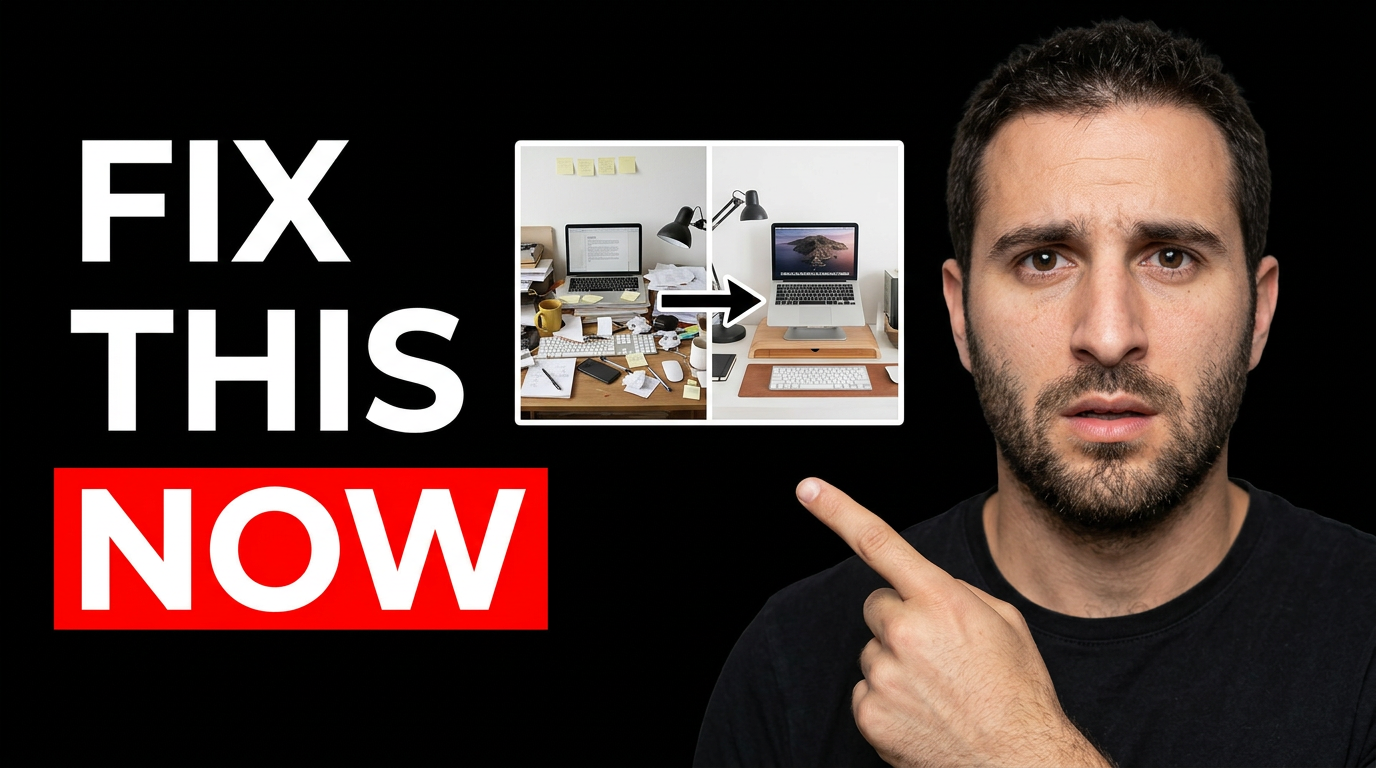
Creator pointing at a cluttered before-and-after workspace setup

A free AI thumbnail maker built for creator control

Thumbnail.AI helps creators move from a rough video concept to a thumbnail that feels made for their channel—not a generic template. Describe the idea, upload a face photo or relevant source image, specify the words viewers should see, and refine the result with clear instructions. Use it for tutorials, reactions, gaming videos, reviews, explainers, Shorts covers, and channel updates.

For YouTube creators, streamers, educators, reviewers, and teams who want fast thumbnail concepts while keeping control of their face, visuals, wording, and channel style.

Three thumbnail ideas for free ai thumbnail maker

Each example explores a different visual direction and can be adapted with your own face, images, wording, and brand.

Creator pointing at a cluttered before-and-after workspace setup

Tutorial transformation

A clear transformation concept for a practical tutorial.

See the visual approach

Close-up of a male creator with a concerned, urgent expression pointing toward a split visual comparison of a cluttered workspace and a clean, polished setup. Bright studio lighting, bold contrast, simple background, one obvious problem area, energetic instructional mood.
Make a thumbnail like this
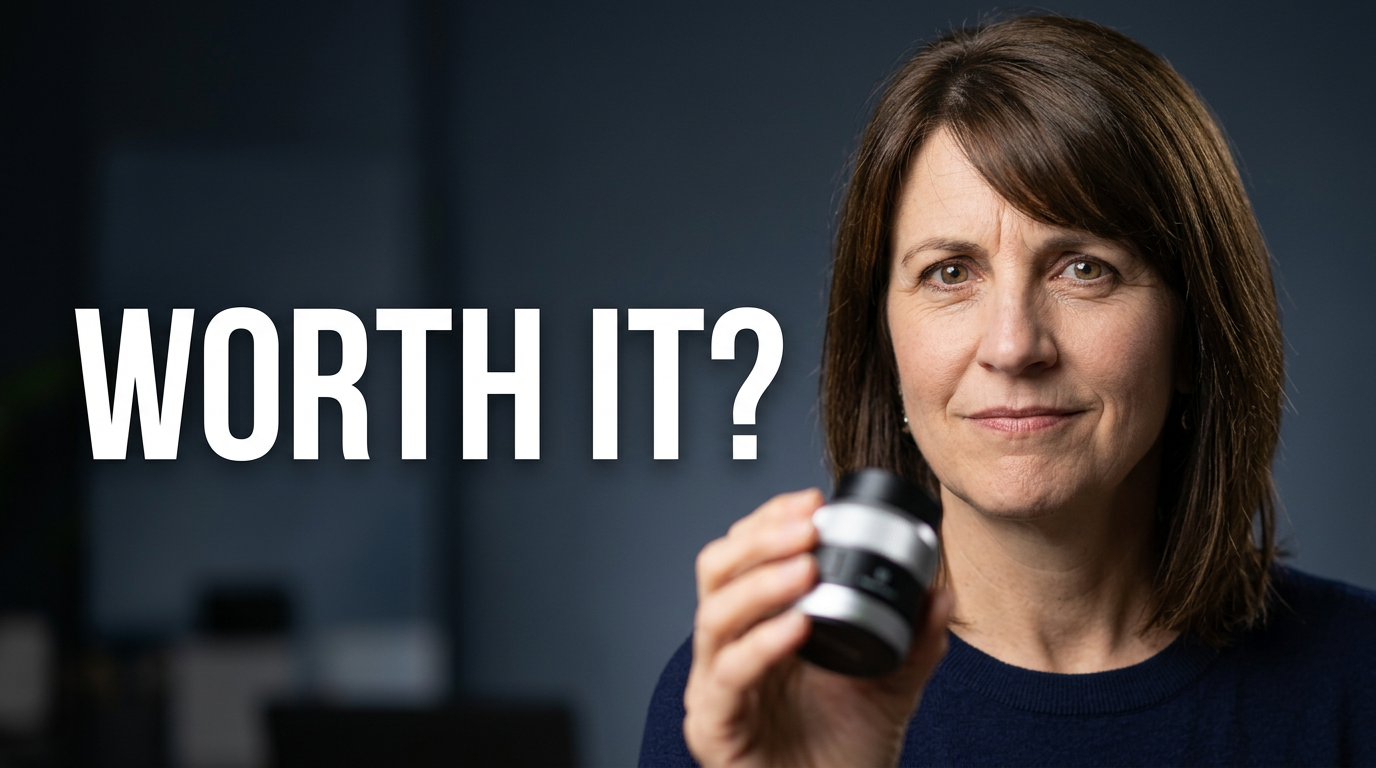
Female creator holding a compact gadget with a skeptical expression

Honest product review

A personal verdict thumbnail that keeps the product and reaction easy to read.

See the visual approach

Female creator holding a compact consumer gadget close to the camera with a skeptical raised-eyebrow expression. Clean desk studio environment, product sharply emphasized in the foreground, subtle question-driven mood, warm professional lighting, uncluttered composition.

Make a thumbnail like this
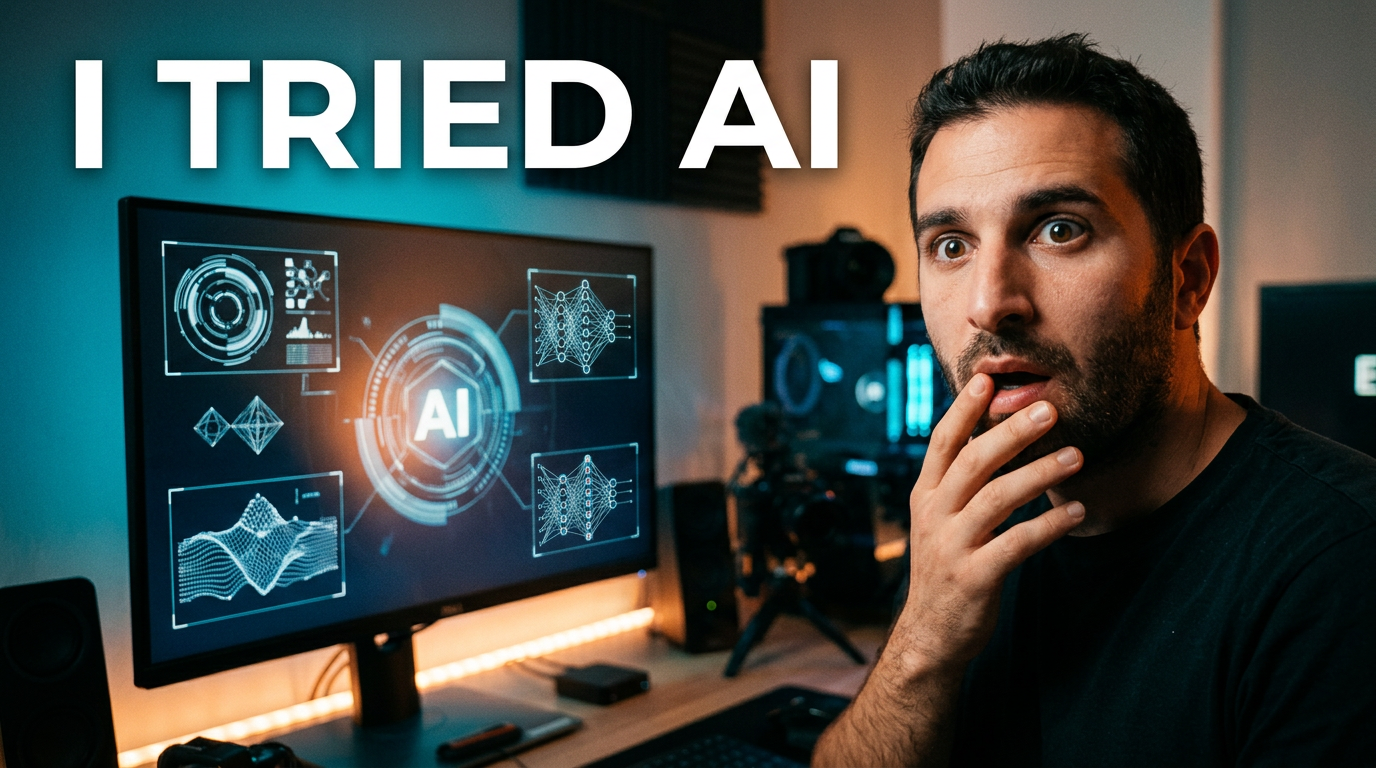
Creator reacting to an AI-powered creative workspace on a large screen

Unexpected creator experiment

A curiosity-led concept for an experiment or behind-the-scenes video.

See the visual approach

Male creator in a modern creative workspace looking surprised at a large screen filled with abstract AI-inspired visual elements. Dramatic side lighting, vivid focal glow from the screen, cinematic depth, clear reaction-led composition, experimental and curious mood.

Make a thumbnail like this

These examples are starting points. Results vary based on your images, wording, and creative direction.

Make thumbnails for the videos you publish

Start with the viewer promise, then give the visual one clear focal point. Thumbnail.AI can help shape concepts around common creator formats such as:

  • Tutorials that show a clear outcome or transformation
  • Reviews that spotlight the product, verdict, or surprising detail
  • Gaming videos built around a tense moment, challenge, or reveal
  • Reaction and commentary videos led by an expressive face
  • Educational explainers that simplify a difficult question
  • Challenge, experiment, and before-and-after videos
  • Channel announcements, updates, and milestone content
  • Podcast clips and interview highlights with two speakers

A simple workflow you can reuse

  1. 1

    Describe the video’s central promise

    Write what the viewer will learn, see, test, fix, compare, or experience. Include the emotion or tension that should come through at a glance.

  2. 2

    Add the assets that make it yours

    Upload a clear face photo, product image, screenshot, logo, gameplay capture, or other source material you want represented in the design.

  3. 3

    Set the exact thumbnail wording

    Provide the short phrase you want visible. Keep it focused on one idea so it remains readable on small screens.

Frequently asked questions

Answers for building a useful, repeatable thumbnail workflow—not just generating one image.

Browse all thumbnail makers
Can I use my own face in an AI thumbnail?

Yes. Upload a clear source photo and describe the expression, pose, crop, and scene you want. Using your own photo gives the thumbnail a more recognizable channel presence.

Can I choose the words that appear on the thumbnail?

Yes. Enter the exact wording you want shown. For stronger readability, keep the visible phrase short and make it support the video title rather than repeat it.

What images should I upload for a thumbnail?

Use the assets viewers need to recognize: a face photo, product photo, game screenshot, chart, location, before-and-after image, or a screenshot from the video. Choose sharp, well-lit source images when possible.

How do I make a thumbnail readable on mobile?

Use one main subject, high contrast, a simple background, and a short text phrase. Avoid trying to explain every detail of the video in the image.

Can I revise a thumbnail concept after creating it?

Yes. Refine the direction in plain language—for example, ask for a closer crop, a different expression, a cleaner background, stronger contrast, a new prop, or a more dramatic scene.

What makes a good AI thumbnail prompt?

Describe the focal subject, facial expression, setting, visual tension, and overall mood. Include source assets when they matter, and reserve the exact visible words for the text field rather than burying them in a long instruction.

Make your next thumbnail in Thumbnail.AI

Bring your video idea, your face, your source images, and your exact wording. Create a custom thumbnail concept, then refine it until it fits your channel.

Create a thumbnail