Make a YouTube Thumbnail That Looks Like Your Video
Start with your face, product shot, screenshot, or source image—then direct the layout, mood, and exact thumbnail wording in plain language.
- personYour face
- add_photo_alternateYour source images
- edit_notePlain-language edits
A flexible free YouTube thumbnail maker for creator-led visuals
A useful YouTube thumbnail maker should do more than place text on a template. Thumbnail.AI helps you build a custom thumbnail around the real subject of your video: your face, a guest, a game moment, a product, a chart, a before-and-after image, or a screen recording. Upload source material, specify the exact words you want visible, and describe the visual direction. Then refine the result until it fits the promise of your video.
Built for YouTube creators who want a fast starting point without giving up control over recognizable faces, source images, wording, or channel style.
Three thumbnail ideas for free youtube thumbnail maker
Each example explores a different visual direction and can be adapted with your own face, images, wording, and brand.
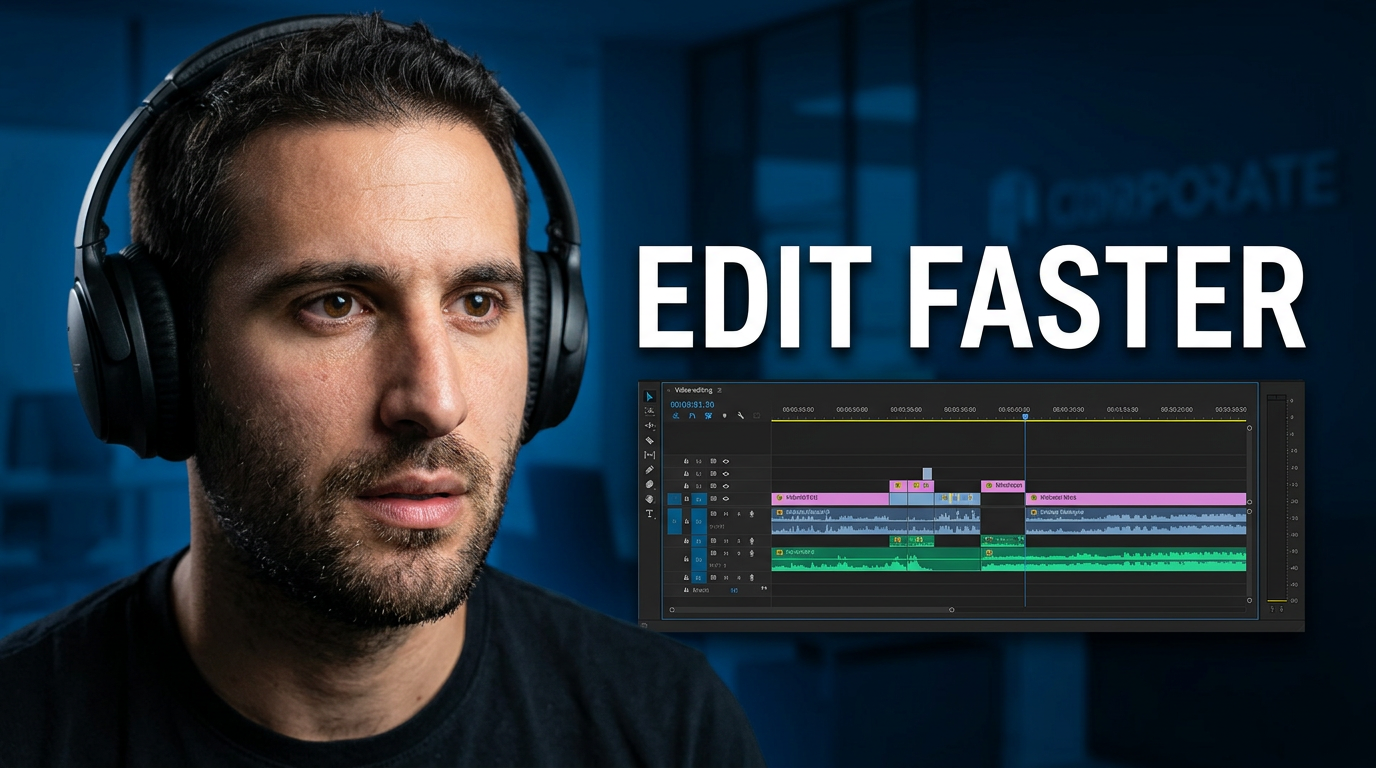
Creator workflow tutorial
Pair a clear presenter reaction with the editing workspace featured in the video.
See the visual approach
Close-up male creator wearing headphones with an impressed, focused expression on the left side; a large, readable video-editing timeline and color controls on the right; dark modern editing studio atmosphere; crisp separation between portrait and interface; energetic instructional mood; use the creator's uploaded face and the supplied editing-screen source image.
Make a thumbnail like this →
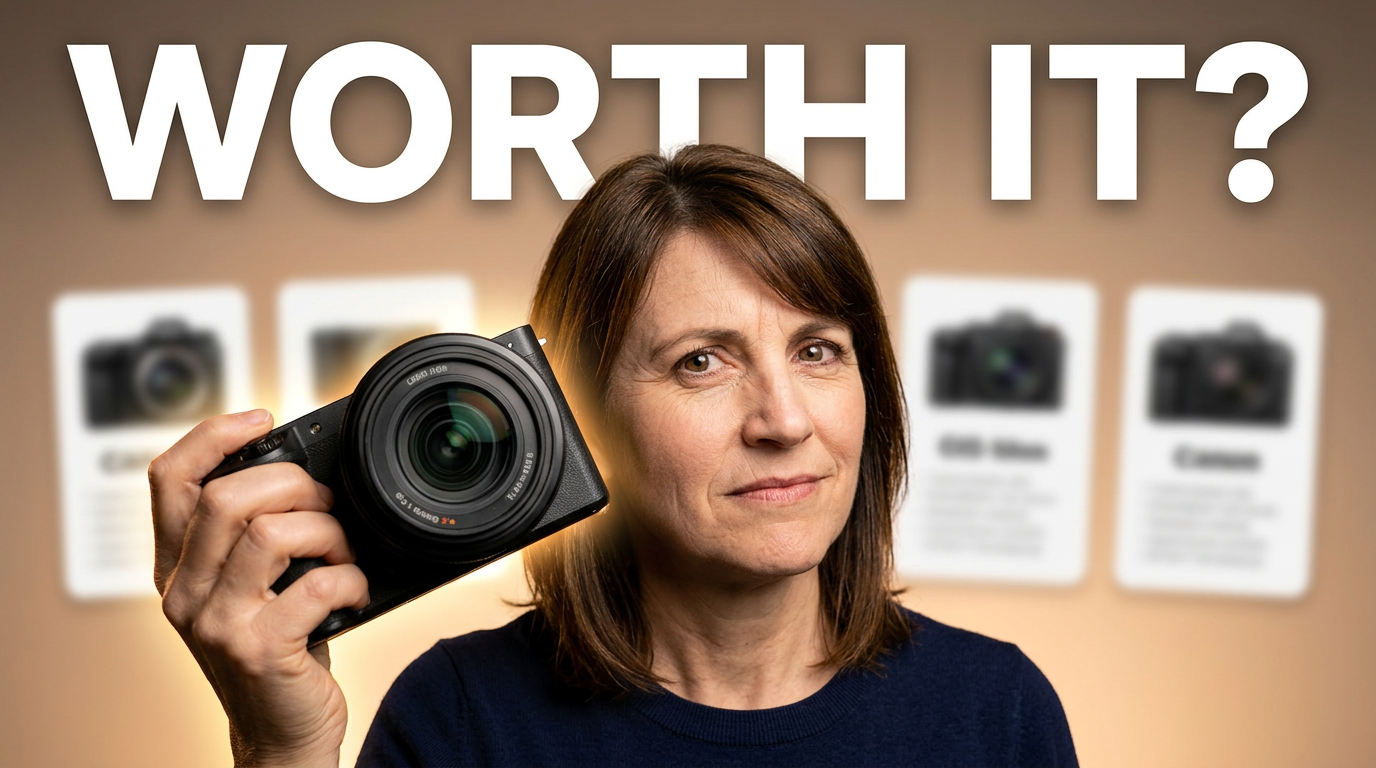
Honest product review
Put the reviewer and the actual product in one decisive frame.
See the visual approach
Female creator holding the uploaded compact camera near her face with a skeptical raised-eyebrow expression; clean warm review-studio backdrop; product large and sharply lit in the foreground; subtle comparison-card shapes in the background without readable details; polished but candid review mood; use the creator's uploaded face and the supplied product image.
Make a thumbnail like this →
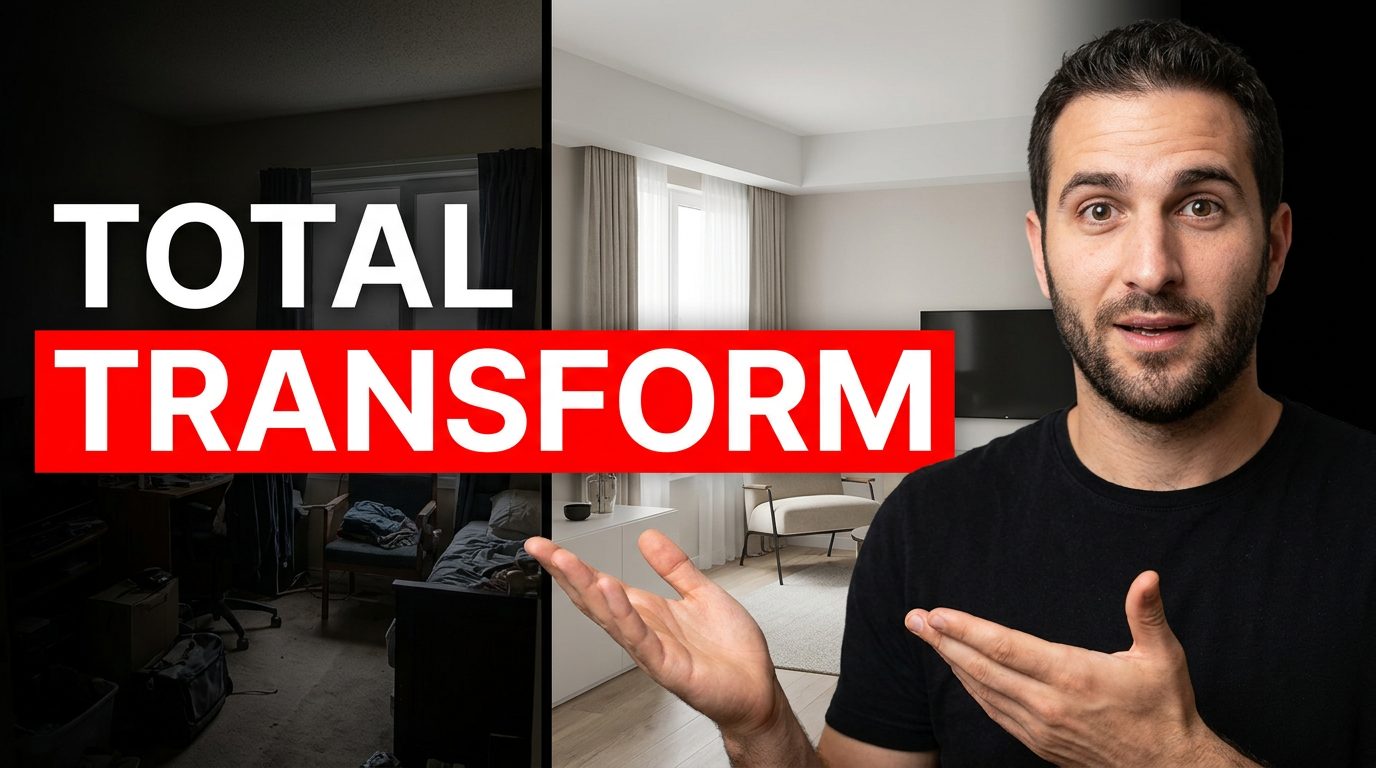
Before and after room makeover
Make the transformation unmistakable with a deliberate split-scene composition.
See the visual approach
Male creator centered with a proud surprised expression, gesturing toward a dramatic split-room transformation; left side shows the supplied cluttered before-room photo with dimmer light, right side shows the supplied finished room photo with bright inviting light; strong clean dividing line; emphasize the contrast in organization, color, and atmosphere; use the creator's uploaded face and both supplied room images.
Make a thumbnail like this →
These examples are starting points. Results vary based on your images, wording, and creative direction.
What to make for your next upload
Use a thumbnail concept that makes the subject and stakes of the video readable at a glance.
- Talking-head videos with an expressive creator portrait
- Tutorials built around a clear screen, tool, or finished result
- Reviews that keep the actual product front and center
- Gaming videos that spotlight a decisive in-game moment
- Business and educational videos with a meaningful chart, document, or visual proof point
- Interviews and collaborations that give both people an intentional role in the composition
- Challenge, experiment, and transformation videos with a visible contrast or reaction
- Commentary videos that pair the creator with the story’s central object or image
A simple workflow you can reuse
-
1
Bring the real material
Upload a photo of yourself, a co-host, a product, a screenshot, or other source imagery that needs to appear in the thumbnail.
-
2
Set the video’s visual promise
Describe the moment, contrast, reaction, setting, and emphasis you want. Add the exact short wording that should be visible on the thumbnail.
-
3
Choose and revise a direction
Explore a custom concept, then ask for focused changes such as a closer crop, clearer subject, stronger reaction, different background, or less clutter.
Frequently asked questions
Answers for building a useful, repeatable thumbnail workflow—not just generating one image.
Browse all thumbnail makers →
Can I use my own face in a YouTube thumbnail?
add
Yes. Upload a clear source photo and make your face part of the direction—for example, a close reaction portrait, a presenter beside a screen, or a cutout over a relevant background.
Can I specify the exact words on the thumbnail?
add
Yes. Provide the short phrase you want viewers to see. Keep it brief and make the video title carry the extra context.
What images should I upload for a review or tutorial thumbnail?
add
Use the actual item, app screen, project result, or image discussed in the video. Real source material helps the thumbnail match what viewers will find after they click.
How is this different from choosing a fixed thumbnail template?
add
Instead of fitting your video into a pre-set layout, you can direct the composition around your own people, images, topic, and wording, then revise the visual choices in plain language.
Can I make thumbnails for different types of YouTube videos?
add
Yes. The same workflow can support tutorials, reviews, commentary, gaming, vlogs, interviews, educational videos, and channel updates. Give the direction that fits the specific video rather than reusing one look for everything.
Create your next YouTube thumbnail
Upload your source images, add your exact wording, and shape a custom visual direction in Thumbnail.AI.
Create a thumbnail in Thumbnail.AI