Make Custom Thumbnails Online Without Starting From Scratch
Turn your face photos, screenshots, product images, and video ideas into click-worthy YouTube-style thumbnail concepts. Direct the look in plain language, then revise the details that matter.
- personYour face
- add_photo_alternateYour source images
- edit_notePlain-language edits
An online thumbnail maker built around your content
Thumbnail.AI helps creators make custom thumbnails online when a template alone is not enough. Upload the images that belong in the design, specify the exact words viewers should see, and describe the scene, emotion, contrast, or focus you want. Use it for videos that need a recognizable on-camera face, a product or screen recording, a before-and-after reveal, or a clear visual promise that matches the actual content.
For YouTube creators, educators, reviewers, streamers, podcasters, and small teams who want more control than a stock-template editor offers.
Three thumbnail ideas for online thumbnail maker
Each example explores a different visual direction and can be adapted with your own face, images, wording, and brand.
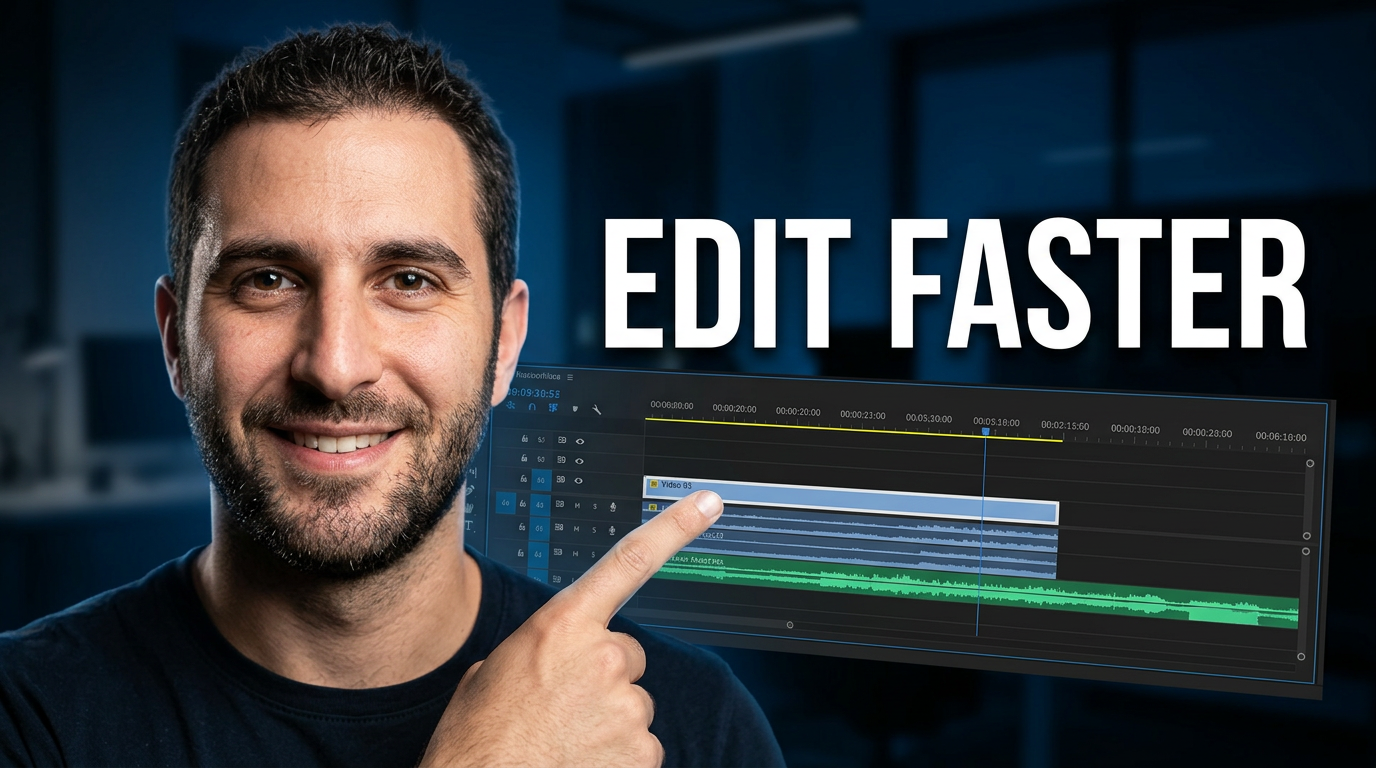
Creator workflow tutorial
Put a creator’s reaction and the key tool on screen in the same focused frame.
See the visual approach
Include the supplied male creator as a large expressive foreground cutout, pointing toward the supplied video-editing timeline screenshot. Arrange the interface as a clean, enlarged background element with one timeline area visually emphasized. Use a vivid dark workspace, crisp contrast, energetic but uncluttered composition, and a practical creator-tutorial mood.
Make a thumbnail like this →
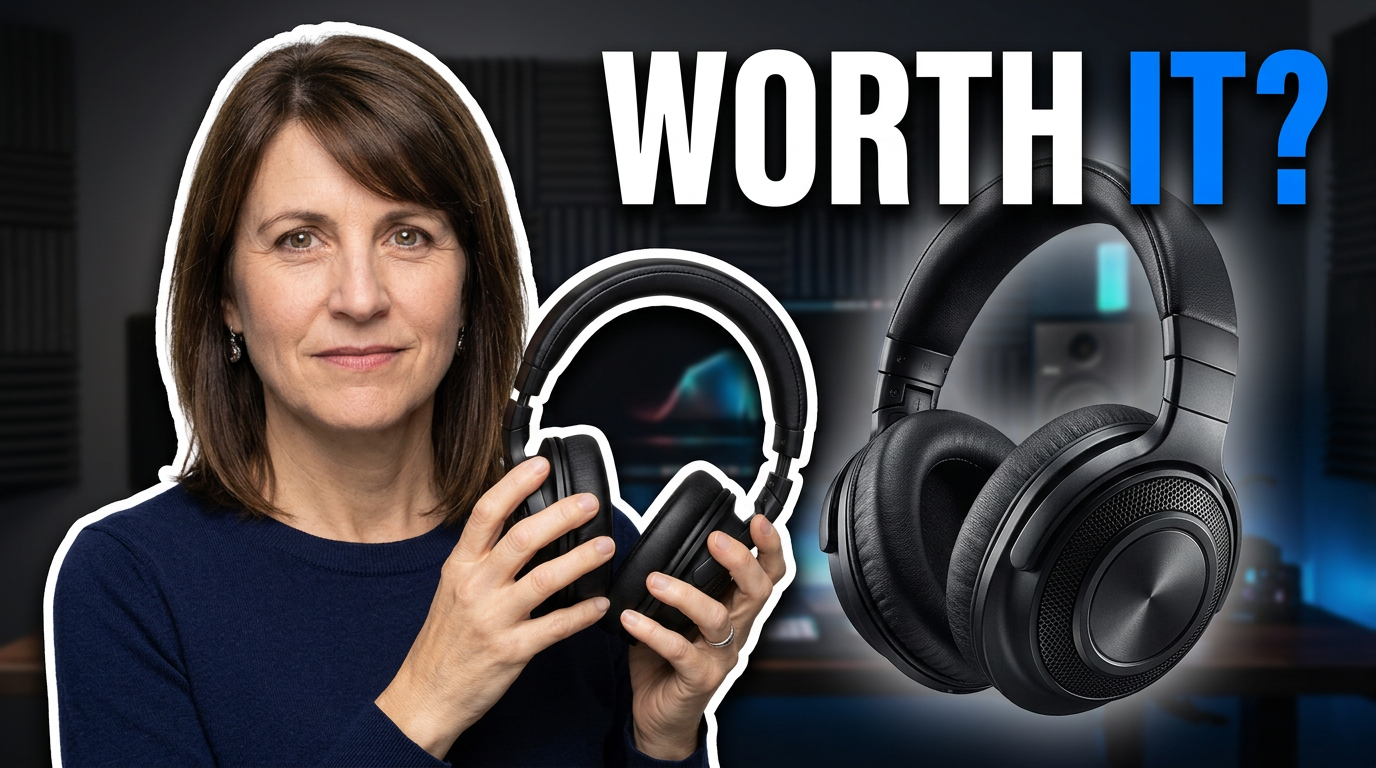
Honest product review
Frame the reviewer and the product around one clear buying question.
See the visual approach
Include the supplied female reviewer in the foreground holding the supplied headphones, with an enlarged detailed view of the headphones beside her. Use a polished studio-like backdrop, dramatic directional lighting, clear separation between person and product, and a skeptical, decision-focused expression. Make the product the secondary focal point after her face.
Make a thumbnail like this →
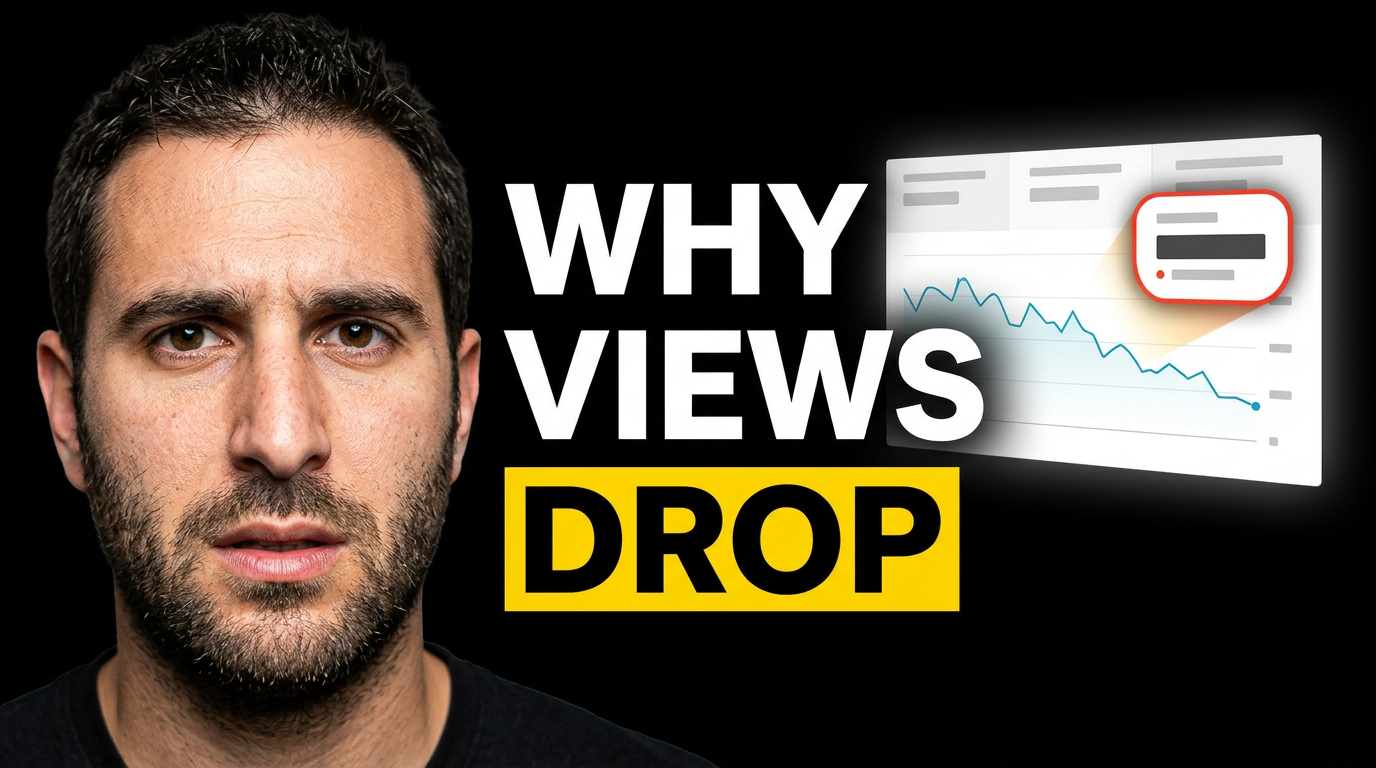
Channel growth breakdown
Make an analytics lesson feel immediate without crowding the frame.
See the visual approach
Include the supplied male creator in a close-up foreground pose with a concerned, analytical expression. Place the supplied analytics dashboard behind him, simplifying the composition around a visibly declining chart and one emphasized metric area. Use deep contrast, a cinematic glow around the chart, and a serious explanatory mood with the creator as the primary focal point.
Make a thumbnail like this →
These examples are starting points. Results vary based on your images, wording, and creative direction.
What to create with an online thumbnail maker
Build a thumbnail around the strongest visual reason to watch, while keeping the wording short enough to read at a glance.
- Face-forward video thumbnails that keep your on-camera identity central
- Tutorial thumbnails with a screen, tool, dashboard, or result in view
- Review thumbnails that pair your reaction with the item being tested
- Comparison thumbnails that make the choice or contrast immediately clear
- Launch and announcement thumbnails using your own product imagery
- Podcast and interview thumbnails featuring the speakers and conversation topic
- Before-and-after thumbnails that spotlight a visible transformation
- Recurring series artwork with a consistent visual direction and flexible wording
A simple workflow you can reuse
-
1
Add the images viewers need to recognize
Upload a face photo, video still, product shot, screenshot, logo, or other source material that should appear in the thumbnail.
-
2
Set the exact visible wording
Enter the short phrase you want on the image. Keep it focused on one promise, result, question, or point of tension.
-
3
Describe the visual direction plainly
Ask for a close-up reaction, a clean tutorial layout, dramatic lighting, a split comparison, a bold product focus, or another direction suited to the video.
Frequently asked questions
Answers for building a useful, repeatable thumbnail workflow—not just generating one image.
Browse all thumbnail makers →
Can I use my own face and photos?
add
Yes. Upload your face photo and any source images that should shape the thumbnail, such as a product image, screenshot, workspace photo, or video still.
Can I choose the words that appear on the thumbnail?
add
Yes. Provide the exact short wording you want displayed. Thumbnail.AI is designed to work from your requested phrasing rather than asking you to settle for placeholder template text.
What makes a thumbnail work well online?
add
The strongest concepts usually have one clear subject, a visible point of interest, strong separation between the subject and background, and only a few readable words. The thumbnail should support the video’s real topic rather than promise something unrelated.
Can I make thumbnails for tutorials and screen-recording videos?
add
Yes. Upload a relevant screen or product image and direct the composition around it. A face reaction, highlighted interface area, or visible outcome can help viewers understand the topic quickly.
Can I revise a thumbnail concept?
add
Yes. Use plain-language revision requests to change the emphasis, mood, composition, visible source material, or other creative details until the direction better fits your video.
Do I need design experience to use Thumbnail.AI?
add
No. You can describe the result you want in everyday terms, then use your own assets and requested text to keep the thumbnail connected to your channel and video.
Create your next thumbnail in Thumbnail.AI
Bring the face, footage, screenshots, and words that make your video yours—then shape the visual direction with a simple request.
Create a thumbnail