Make thumbnails that look like your channel

Turn your face, source images, video topic, and exact wording into custom YouTube-style thumbnail concepts—then refine the details with simple direction.

  • Your face
  • Your source images
  • Plain-language edits
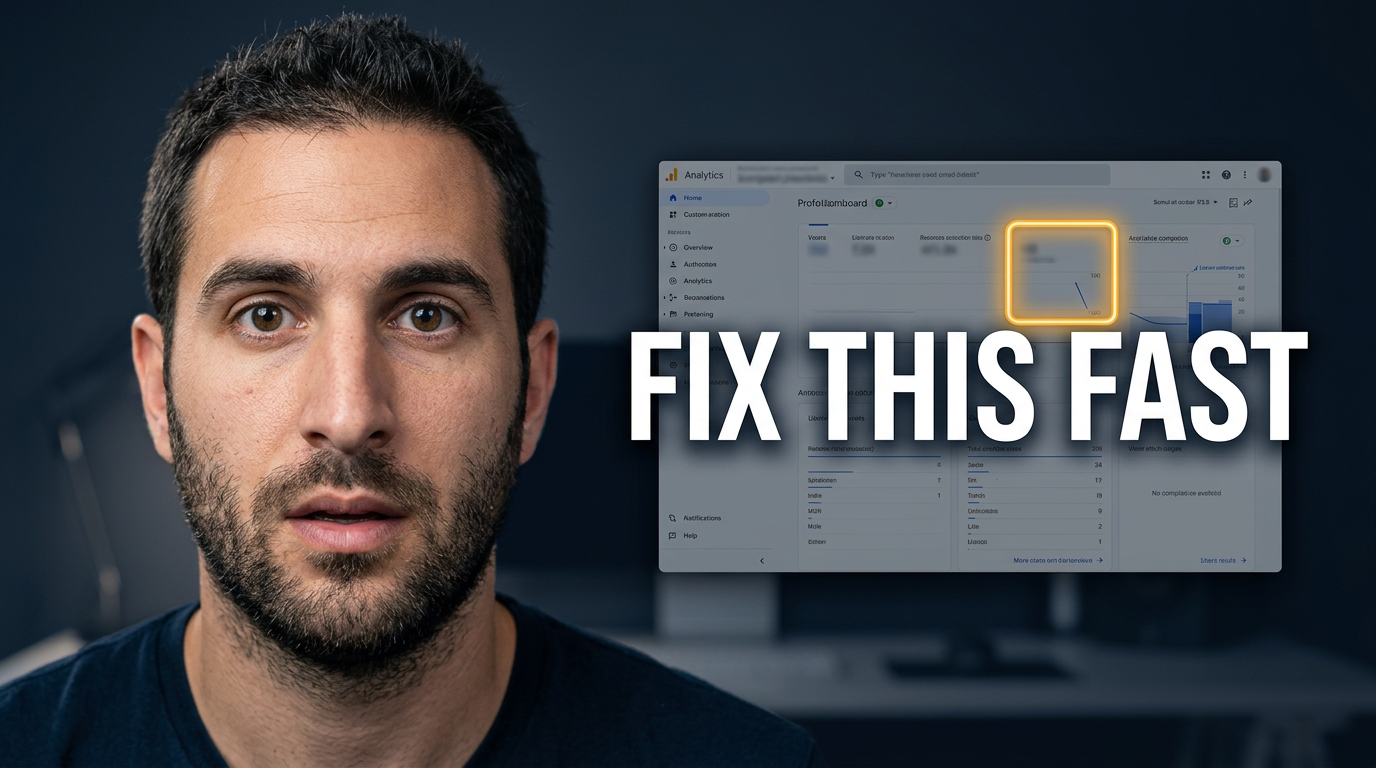
Creator reacting beside a large software dashboard screenshot with an error area emphasized

A thumbnail maker built around your actual content

Thumbnail.AI helps creators make custom thumbnail concepts without settling for generic templates. Upload a photo of yourself, add relevant screenshots or product images, specify the words you want visible, and describe the look you have in mind. Create a starting concept for a tutorial, review, commentary video, channel update, or launch video, then revise the composition, expression, background, emphasis, and text treatment until it fits.

Made for YouTube creators, educators, reviewers, streamers, podcasters, and teams who need thumbnails that stay recognizable from one upload to the next.

Three thumbnail ideas for thumbnail maker

Each example explores a different visual direction and can be adapted with your own face, images, wording, and brand.

Creator reacting beside a large software dashboard screenshot with an error area emphasized

Tutorial result reveal

Pair a clear reaction with the exact screen or result the tutorial addresses.

See the visual approach

Close-up male creator on the left with a focused, slightly surprised expression, large recognizable dashboard screenshot on the right, one interface problem area visually emphasized, clean dark workspace background, bright contrast, direct tutorial-result mood, use the supplied creator photo and supplied screen capture.
Make a thumbnail like this
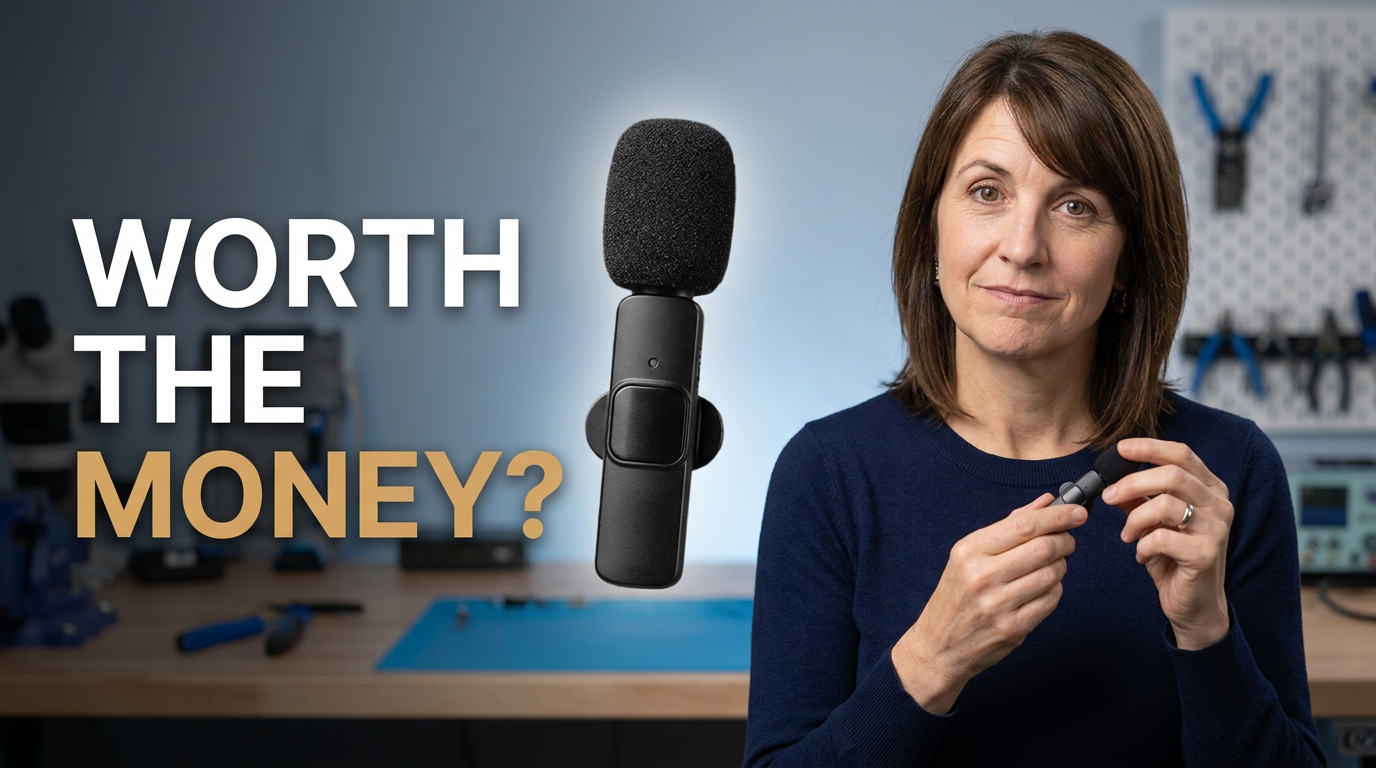
Female reviewer holding a compact creator tool with an enlarged product detail beside her

Honest product review

Make the product and the reviewer’s decision clear at a glance.

See the visual approach

Female reviewer in the foreground holding the supplied compact creator tool, skeptical but approachable expression, enlarged detailed view of the product beside her, neat studio desk environment, balanced premium lighting, clear purchase-decision emphasis, use the supplied reviewer photo and product image.

Make a thumbnail like this
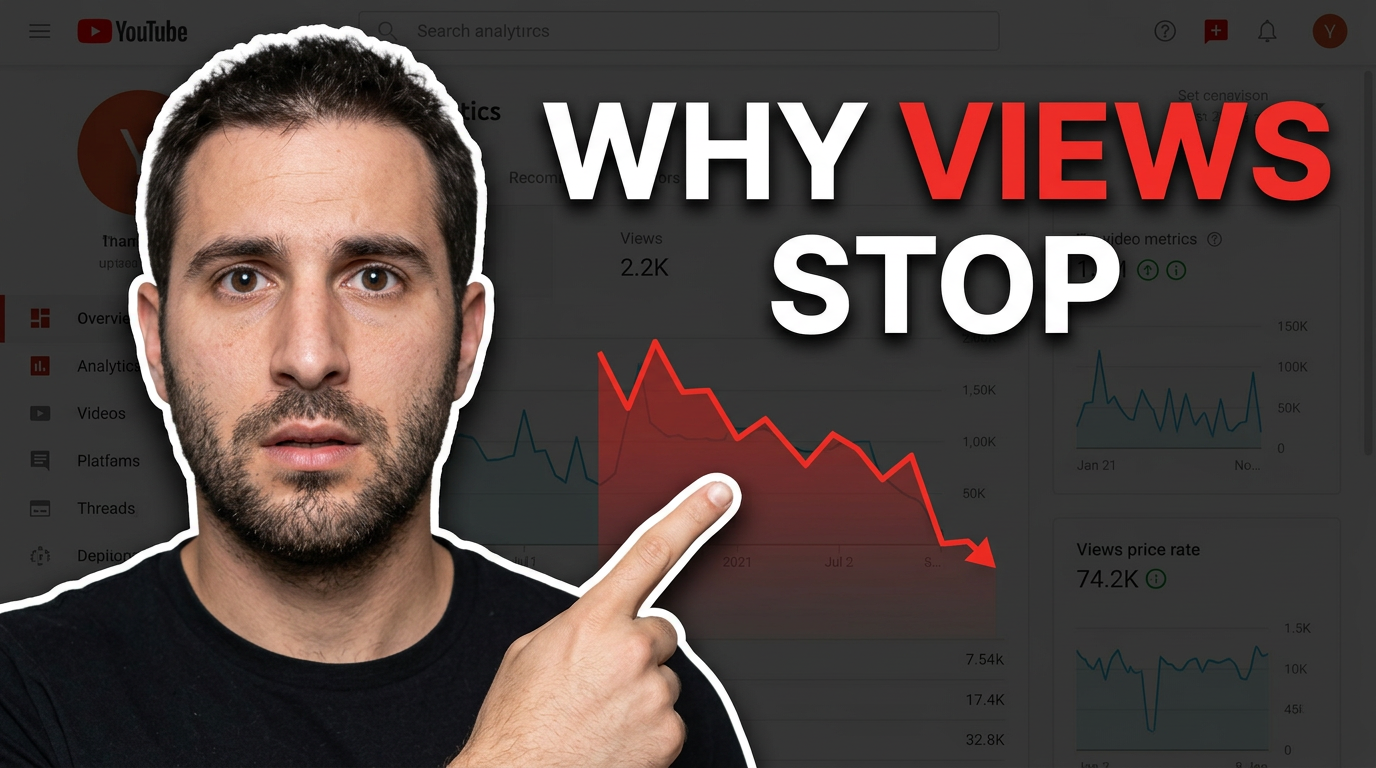
Male creator pointing at a falling chart beside a simplified YouTube video layout

Channel growth breakdown

Use one unmistakable problem visual for a creator-focused analysis video.

See the visual approach

Male creator facing camera and pointing toward a descending analytics chart, simplified video-platform layout in the background, expressive concerned look, bold red and dark neutral color contrast, uncluttered composition, analytical and urgent mood, use the supplied creator photo and supplied analytics screenshot.

Make a thumbnail like this

These examples are starting points. Results vary based on your images, wording, and creative direction.

Make each video easy to recognize

Use your existing channel assets and a clear visual angle to create thumbnails for content such as:

  • How-to videos and software walkthroughs
  • Product reviews, comparisons, and unboxings
  • Business, creator, and commentary videos
  • Educational lessons and explainer videos
  • Gaming highlights and challenge videos
  • Podcast clips, interviews, and channel updates
  • Course promotions, launches, and announcements
  • Recurring series that need a consistent visual identity

A simple workflow you can reuse

  1. 1

    Add the material that matters

    Upload a face photo, logo, screenshot, product shot, before-and-after image, or other source material that should appear in the design.

  2. 2

    Set the visible words

    Enter the exact short phrase you want on the thumbnail. Keep it focused on the tension, result, question, or decision that makes the video worth opening.

  3. 3

    Describe the visual direction

    Ask for a close-up reaction, a clean comparison layout, a dramatic reveal, a desk setup, a bold product focus, or another look that matches the video.

Frequently asked questions

Answers for building a useful, repeatable thumbnail workflow—not just generating one image.

Browse all thumbnail makers
Can I use my own face in a thumbnail?

Yes. Upload a clear photo of yourself and make it part of the requested composition. You can also direct the framing, expression, background, and the objects or screenshots placed around you.

Can I add exact text to the thumbnail?

Yes. Provide the exact wording you want visible. Short, high-contrast phrases generally work best because thumbnail text must remain readable at small sizes.

Can I make thumbnails for different kinds of YouTube videos?

Yes. You can create concepts for tutorials, reviews, commentary, educational videos, launches, gaming content, interviews, and more. Include the video angle and any supporting images so the visual matches the subject.

What source images should I upload?

Use assets that carry the story: a product photo for a review, a dashboard screenshot for a tutorial, a result image for a transformation, or a guest photo for an interview. Clear, well-lit images give you more useful material to work with.

Can I revise a thumbnail concept after the first version?

Yes. Give plain-language feedback on what to change, such as making your face larger, simplifying the background, swapping the featured image, changing the mood, or putting more emphasis on one visual element.

How do I keep thumbnails consistent across my channel?

Reuse recognizable ingredients across related videos: your face framing, color direction, typography approach, logo placement, and recurring layout. Then change the featured subject and short message for each upload.

Create your next custom thumbnail

Bring your face, footage stills, screenshots, products, and exact message together in a thumbnail built for the video you are publishing.

Create a thumbnail in Thumbnail.AI