A video thumbnail generator built around your content
Turn your topic, face, source images, and exact on-thumbnail wording into a custom thumbnail direction you can refine before publishing.
- personYour face
- add_photo_alternateYour source images
- edit_notePlain-language edits
What is a video thumbnail generator?
A video thumbnail generator helps creators shape a click-worthy visual for a specific video without starting from a blank canvas. Thumbnail.AI is designed for custom YouTube-style thumbnails: provide your own face or relevant source material, specify the words that must appear, and describe the visual angle in plain language. Use it for tutorials, reactions, reviews, announcements, explainers, and channel updates where the thumbnail needs to match the actual video—not a generic template.
For YouTube creators, educators, commentators, reviewers, and channel teams who want thumbnail concepts that reflect their own on-camera identity and subject matter.
Three thumbnail ideas for video thumbnail generator
Each example explores a different visual direction and can be adapted with your own face, images, wording, and brand.
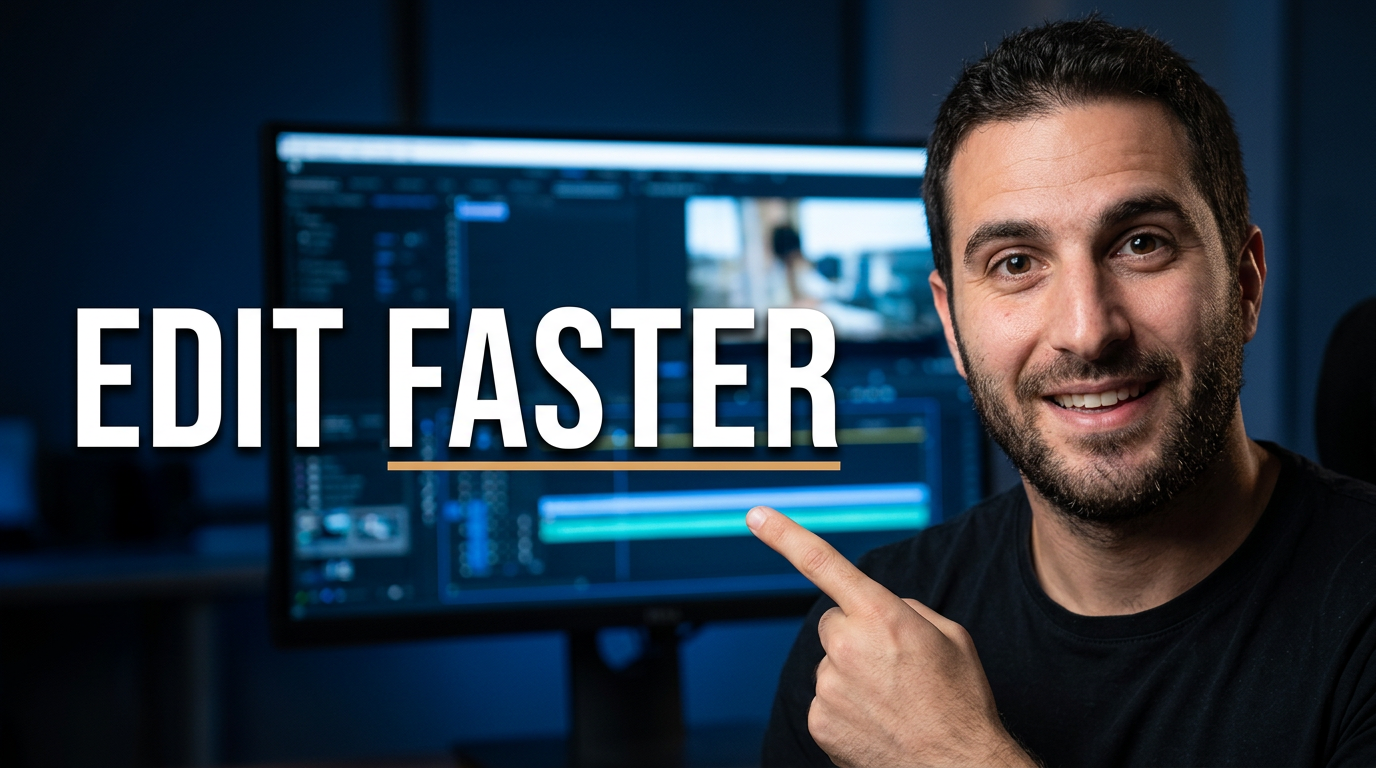
Tutorial outcome thumbnail
Make the practical result the first thing viewers notice.
See the visual approach
Male creator in the foreground with an energized, confident expression, pointing toward a clean video editing timeline on a large monitor. Dark studio background with vivid blue interface glow, strong separation between the creator and screen, focused tutorial mood, bold simple composition.
Make a thumbnail like this →
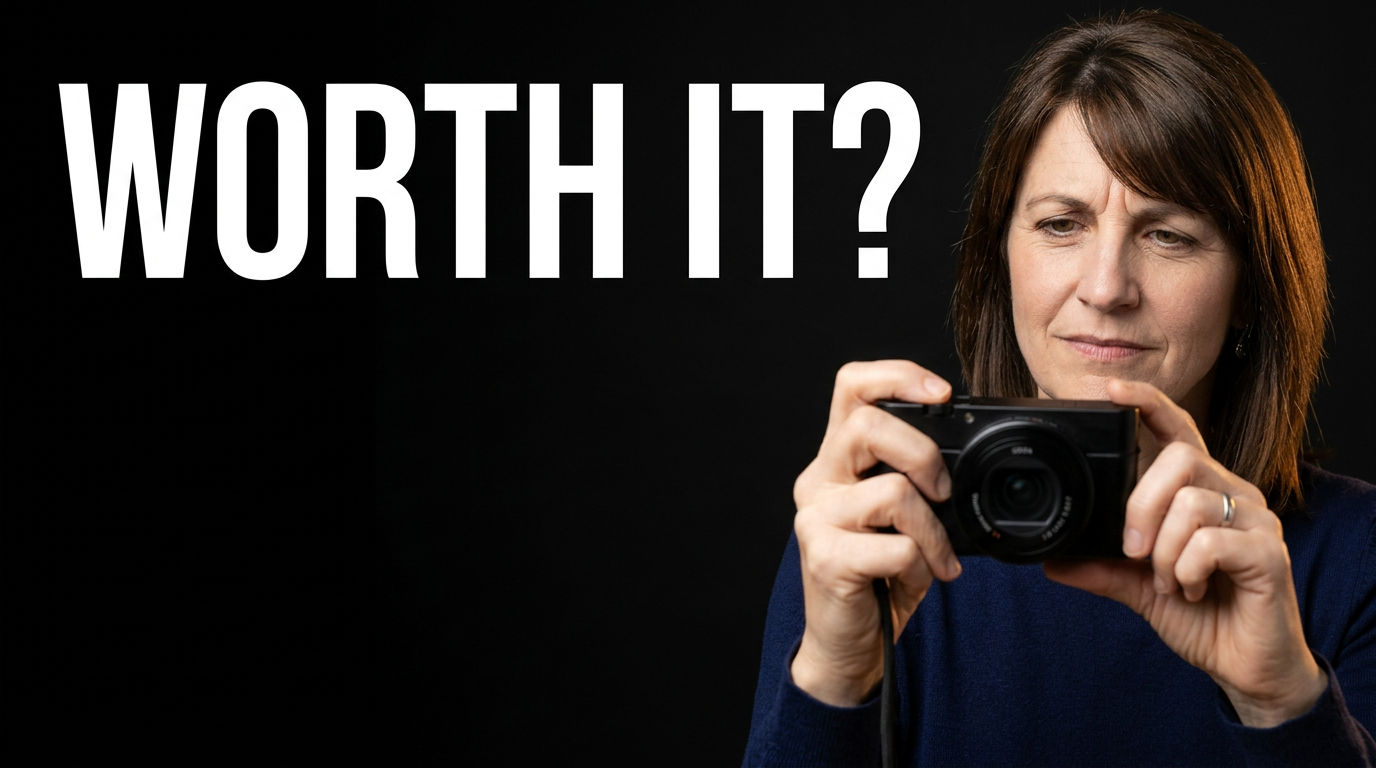
Honest product review thumbnail
Pair the product with an unmistakable personal verdict question.
See the visual approach
Female creator holding a compact camera close to the lens with a skeptical, evaluative expression. Premium desk setup in soft dark tones, camera sharply emphasized, subtle warm rim light around the creator, uncluttered review-focused composition with a candid mood.
Make a thumbnail like this →
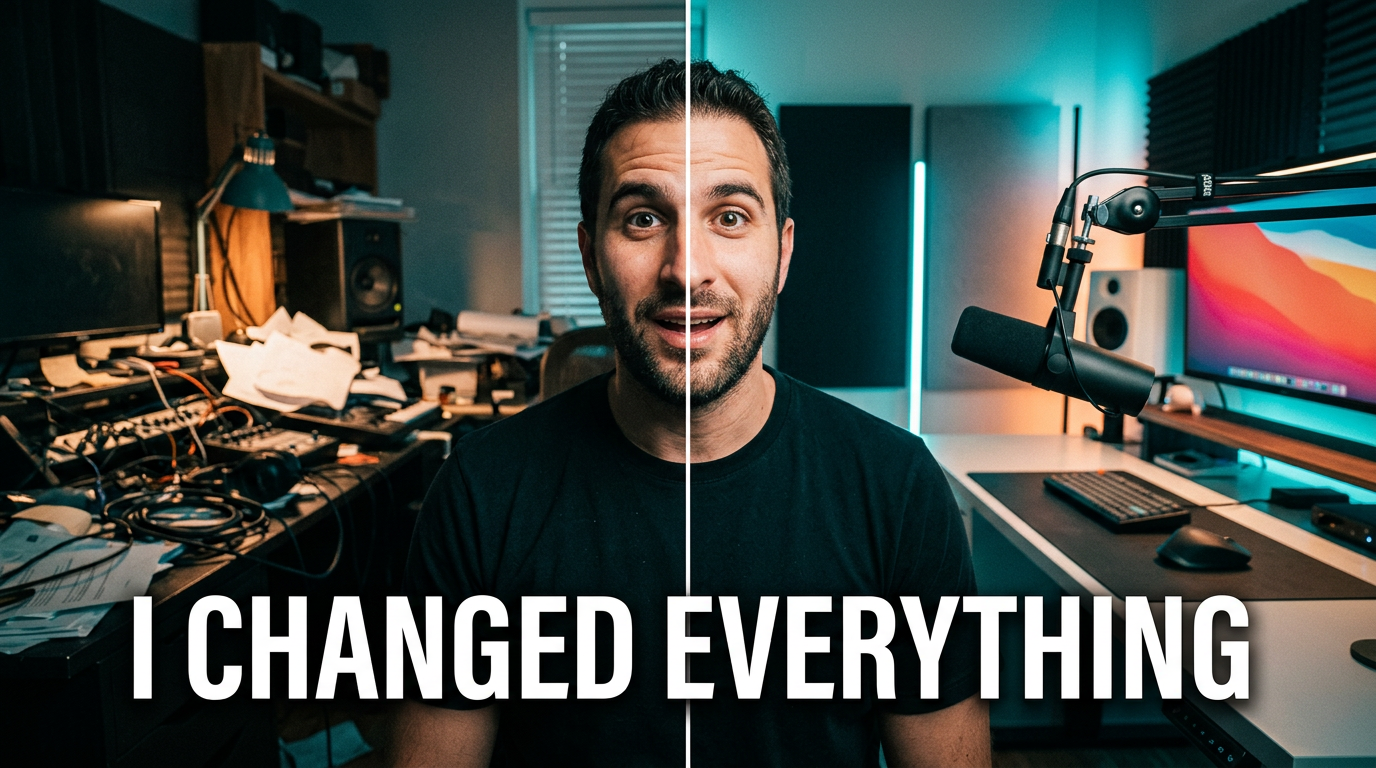
Before-and-after creator update
Use visual contrast to make a major change instantly understandable.
See the visual approach
Male creator centered between two sharply contrasting home studio setups: an overcrowded dim workspace on one side and a bright organized recording setup on the other. Surprised but optimistic expression, clear dividing line, dramatic transformation mood, the creator and contrast between spaces as the visual focus.
Make a thumbnail like this →
These examples are starting points. Results vary based on your images, wording, and creative direction.
Make thumbnails that fit the video
A strong thumbnail gives viewers one immediate reason to pay attention while staying visually connected to what the video delivers. Start with a clear angle, a focused subject, and a short message that remains readable at small sizes.
- Tutorials that promise a practical outcome
- Product and gear reviews with a clear verdict
- Before-and-after transformations
- Reaction and commentary videos
- Creator announcements and channel updates
- Explainers built around one surprising question
- Challenge, experiment, and comparison videos
- Interviews and conversations with a featured guest
A simple workflow you can reuse
-
1
Describe the video’s central hook
State the outcome, question, opinion, reveal, or conflict that makes this particular video worth opening. Keep the thumbnail centered on one idea rather than summarizing every point.
-
2
Add your visual materials
Use your face, product photos, screenshots, logos, or other relevant source images when they matter to recognition or accuracy. Choose a clear primary subject for the composition.
-
3
Set the exact wording
Provide the short phrase that should appear on the thumbnail. Keep it direct and easy to scan, with only the few words needed to strengthen the visual hook.
Frequently asked questions
Answers for building a useful, repeatable thumbnail workflow—not just generating one image.
Browse all thumbnail makers →
Can I make a thumbnail using my own face?
add
Yes. Thumbnail.AI is intended for custom creator thumbnails, so you can base the direction on your own face and include it as the focal point alongside the topic, product, screenshot, or setting from your video.
Can I use exact text in a video thumbnail?
add
Yes. Supply the precise short wording you want visible. A concise phrase is usually easier to read on phones and leaves room for a strong subject or visual proof point.
What source images should I provide for a review thumbnail?
add
Include the product image or a clear photo of the item, plus your face if you want a creator-led design. Screenshots, comparison images, and relevant packaging can also help establish what the review covers.
How is this different from a generic thumbnail template?
add
Templates begin with a fixed layout and broad style. Thumbnail.AI lets you direct a thumbnail around your actual video topic, supplied images, face, wording, and desired emphasis, then refine the concept in plain language.
Can I create thumbnails for videos other than YouTube?
add
Yes. The same thumbnail process can support video platforms, course lessons, social video covers, and channel updates. Frame the request around where the image will appear and what a viewer needs to understand at a glance.
Create your next video thumbnail
Bring the real topic, the right source images, and the exact words you want viewers to notice into one custom thumbnail direction.
Create a thumbnail in Thumbnail.AI