YouTube Thumbnail AI That Still Looks Like Your Channel

Turn a video idea, your own photos, and the words you need into a polished YouTube thumbnail. Direct the layout in plain language, then revise it until it fits the upload.

  • Your face
  • Your source images
  • Plain-language edits
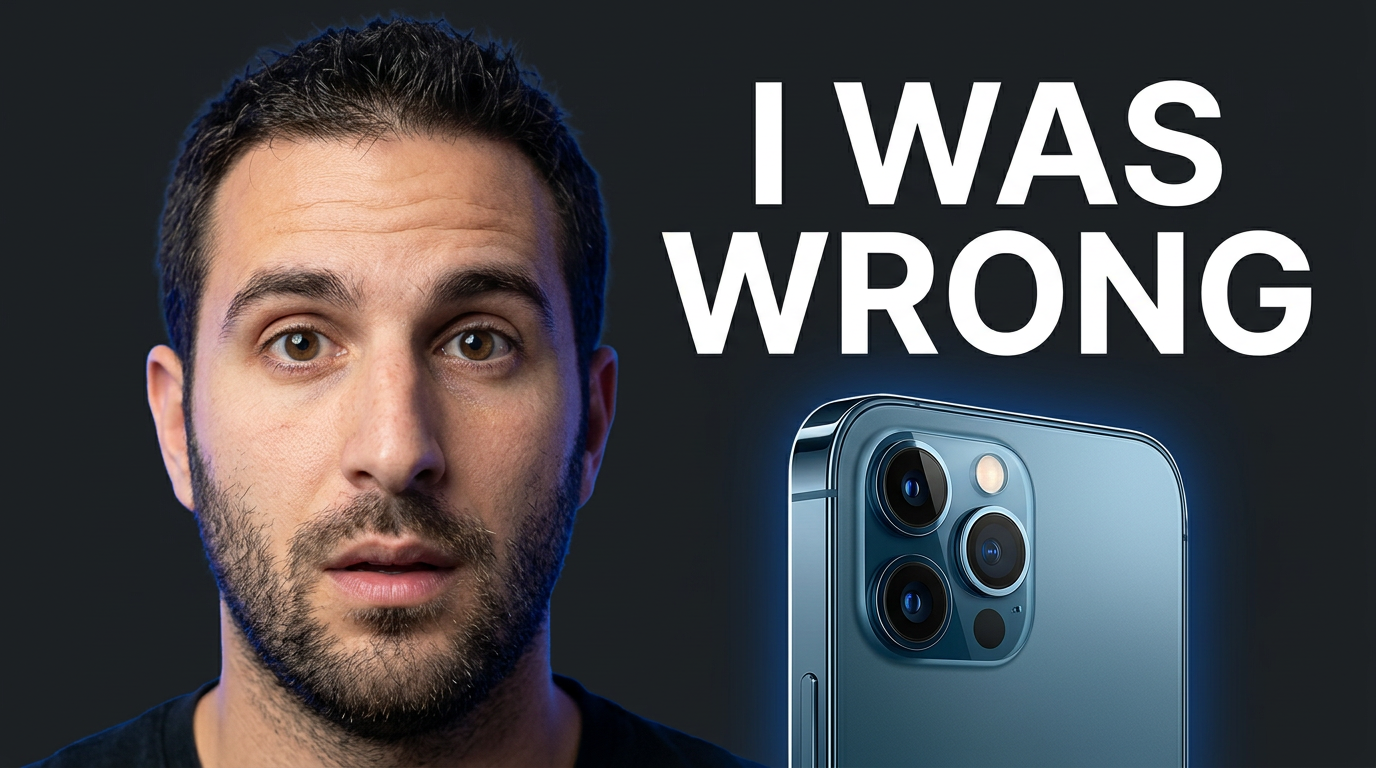
Male YouTube creator reacting with surprise beside a prominent smartphone on a high-contrast background.

What is YouTube thumbnail AI?

YouTube thumbnail AI helps creators develop thumbnail concepts and custom visuals without starting from a blank canvas. In Thumbnail.AI, you can use your own face, product shots, screenshots, logos, or reference images; specify exact on-thumbnail wording; and describe the look you want. It is built for the practical thumbnail work around a real upload: making the subject readable, keeping the focal point clear, matching your channel’s visual character, and trying alternate directions before publishing.

Made for YouTube creators, editors, channel managers, educators, reviewers, gamers, and businesses that need a thumbnail tailored to a specific video—not a generic stock-style image.

Three thumbnail ideas for youtube thumbnail ai

Each example explores a different visual direction and can be adapted with your own face, images, wording, and brand.

Male YouTube creator reacting with surprise beside a prominent smartphone on a high-contrast background.

Unexpected Creator Result

A reaction-led concept for a review, experiment, or opinion video.

See the visual approach

Close-up of the supplied male creator with a surprised, reconsidering expression, positioned on the left side of the frame. A supplied smartphone product image appears large on the right with crisp edge lighting. Dark charcoal background with an electric blue accent glow, dramatic contrast, clean negative space, and a skeptical-review mood. Keep the creator’s face and the product equally prominent.

Make a thumbnail like this
Female creator pointing toward a messy dashboard and a clean improved result in a bright studio-style composition.

Tutorial Transformation

A clear before-and-after direction for a software or productivity tutorial.

See the visual approach

Supplied female creator in the foreground with a confident helpful expression, gesturing toward two large supplied interface screenshots: one cluttered and one clean and organized. Bright modern workspace atmosphere, warm light on the creator, distinct contrast between the two screens, simple background, and visual emphasis on the improvement.

Make a thumbnail like this
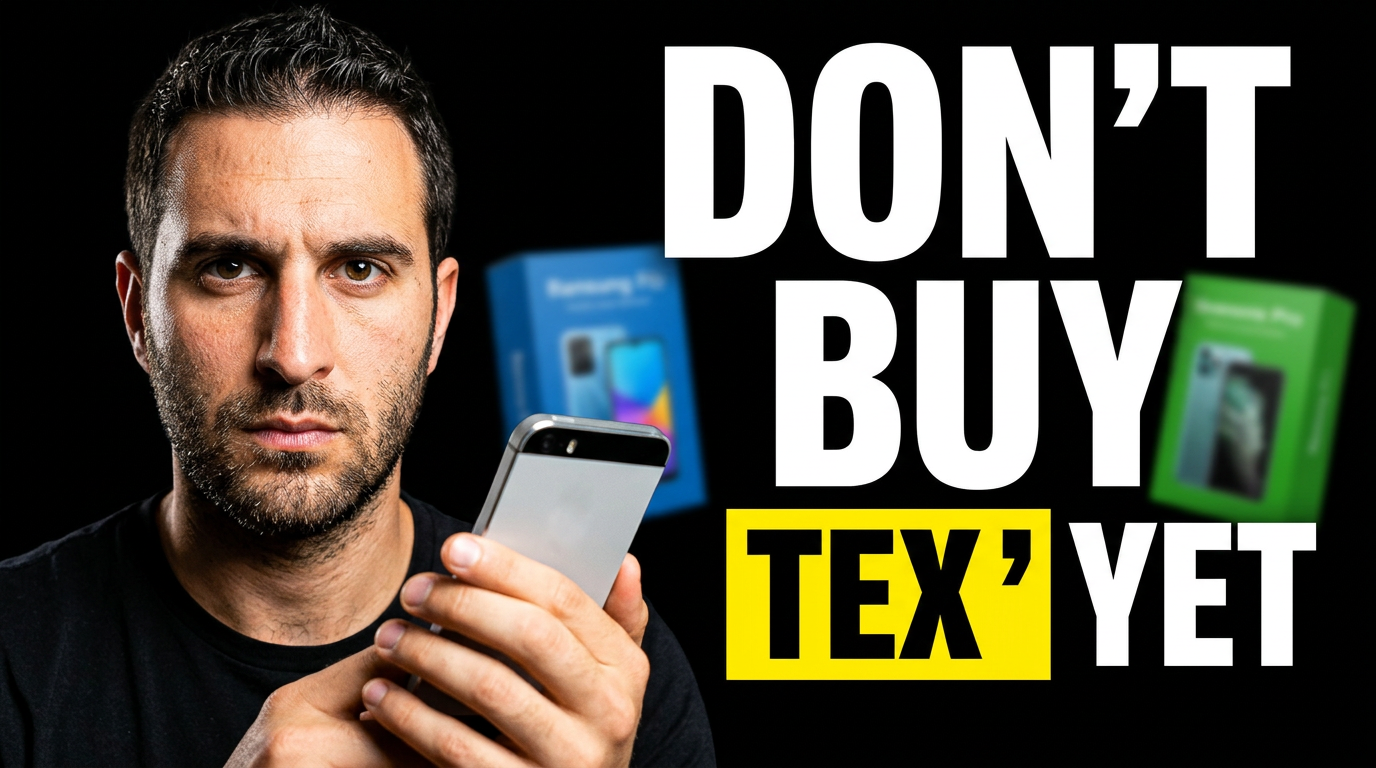
Male reviewer holding one product while two competing devices sit in a dramatic comparison layout.

The Better Choice

A decision-focused layout for a buyer’s review or comparison video.

See the visual approach

Supplied male reviewer centered with a cautionary expression, holding a supplied product image or device. Two competing supplied products are arranged behind him on opposite sides with a subtle visual divide. Moody dark studio environment, controlled rim lighting, premium editorial composition, and strong emphasis on the product decision.

Make a thumbnail like this

These examples are starting points. Results vary based on your images, wording, and creative direction.

Build thumbnails around what viewers need to notice

A strong thumbnail gives the video’s main idea a clear visual hierarchy. Use Thumbnail.AI to shape the elements that matter for your content.

  • Creator-led videos that put your own expression and face at the center
  • Tutorial and educational videos with a clear result, tool, or transformation
  • Reviews and comparisons that spotlight the item or decision at stake
  • Commentary, news, and analysis built around a timely subject or bold angle
  • Gaming videos that emphasize the moment, challenge, character, or outcome
  • Podcast clips and interviews where the guest, host, and conversation are the hook
  • Product demos, launches, and business videos using supplied product imagery and brand assets
  • Channel-consistent thumbnail variations for testing different visual directions

A simple workflow you can reuse

  1. 1

    Start with the video’s promise

    Describe the upload’s main takeaway, tension, result, or question. Add any useful context about your audience and channel style.

  2. 2

    Add the assets viewers should recognize

    Upload a face photo, product image, screenshot, logo, or other source material you want reflected in the composition.

  3. 3

    Set the wording and creative direction

    Enter the exact short phrase you want visible, then describe the mood, framing, colors, background, and focal point in plain language.

Frequently asked questions

Answers for building a useful, repeatable thumbnail workflow—not just generating one image.

Browse all thumbnail makers
Can I use my own face in an AI YouTube thumbnail?

Yes. Upload a clear photo of yourself and make it part of the requested composition. You can direct the pose, expression, crop, background, and the visual emphasis around your face.

Can I specify the exact text for my thumbnail?

Yes. Provide the precise short wording you want on the thumbnail. Keep it concise so the visual can remain easy to scan at small sizes.

Can I make thumbnails for tutorials, reviews, gaming, and commentary videos?

Yes. The direction can be tailored to the video format: a visible before-and-after for a tutorial, a hero product for a review, an in-game moment for gaming, or a topical subject for commentary.

What source images should I upload?

Use clear, well-lit face photos when you want a creator-led thumbnail. For product, software, game, or educational content, add the product photo, screenshot, artwork, chart, or reference image that needs to be recognizable.

Can I revise a thumbnail after the first concept?

Yes. Use plain-language feedback to request changes such as a closer crop, stronger facial reaction, simpler background, different color treatment, more room for text, or a new focal point.

How much text should a YouTube thumbnail have?

Usually, a short phrase is easier to read than a full video title. Aim for a few high-impact words that complement the title instead of repeating it word for word.

Create a custom thumbnail for your next YouTube video

Bring your face, assets, idea, and exact wording. Tell Thumbnail.AI what should stand out, then refine the visual direction for your channel.

Create a thumbnail in Thumbnail.AI