
Create YouTube Thumbnails That Match Your Video

Turn your footage, face photos, product shots, and video idea into a custom thumbnail with clear wording and a visual direction that fits your channel.

  • Your face
  • Your source images
  • Plain-language edits
Male creator holding a repaired laptop beside a close-up of its damaged screen

A YouTube thumbnail generator built for your actual content

Thumbnail.AI helps YouTube creators create and revise custom thumbnail concepts without settling for generic stock-style visuals. Upload your own face, screenshots, products, or reference images; specify the exact words to show; then describe the mood, composition, and focal point in plain language. Use it for tutorials, reviews, commentary, gaming videos, vlogs, explainers, launches, and more.

Made for creators who want thumbnails to look connected to the people, subjects, and visual identity already on their channel.

Three thumbnail ideas for youtube thumbnail generator

Each example explores a different visual direction and can be adapted with your own face, images, wording, and brand.

Male creator holding a repaired laptop beside a close-up of its damaged screen

Tutorial result reveal

Put the finished result and the original problem in one clear frame for a repair tutorial.

See the visual approach

Use the supplied male creator photo as the main foreground subject, with an expressive confident reaction. Place a clean, working laptop close to him and show a smaller cracked-screen or error-state laptop image as a contrasting before detail. Create a bright workshop desk setting with strong separation between the two states, a clear focal point on the creator and repaired device, and an energetic practical mood. Use the supplied laptop source images where available.
Make a thumbnail like this
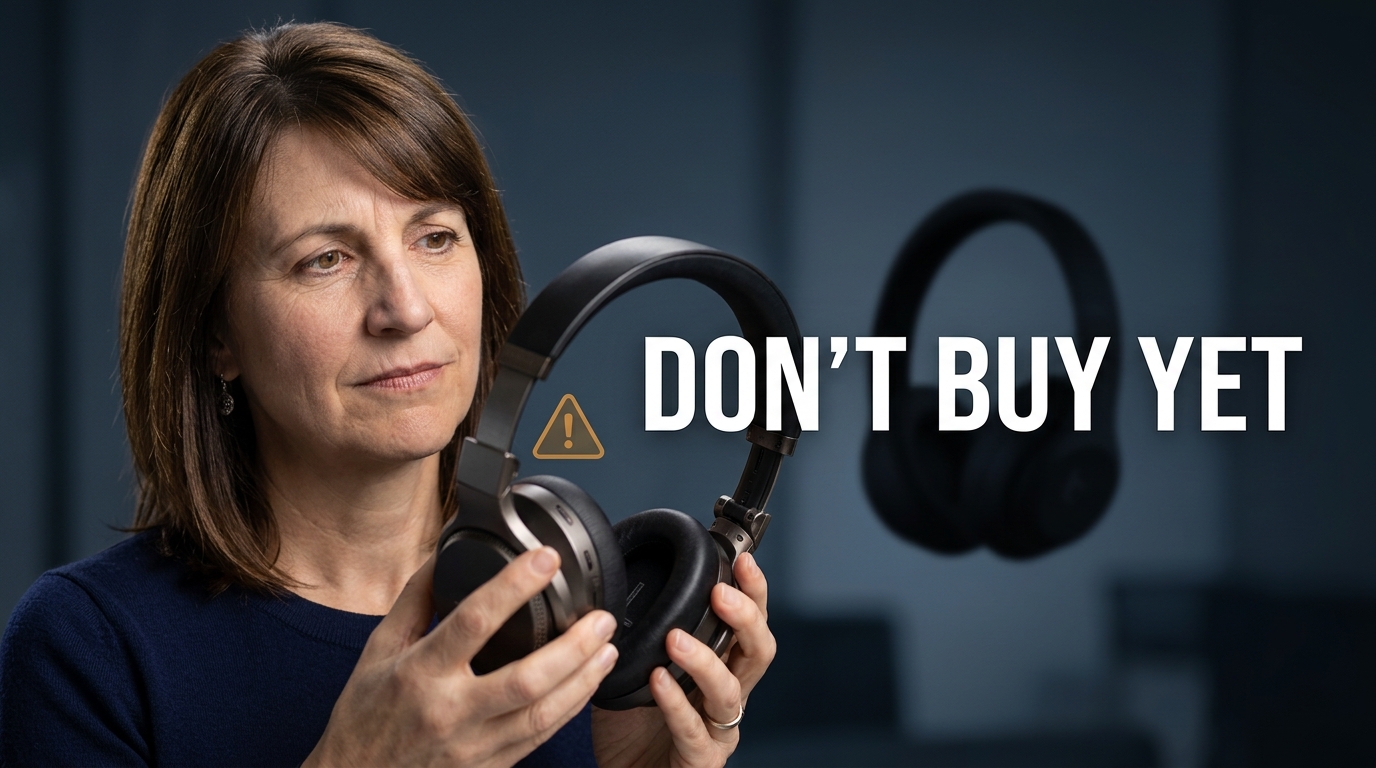
Female reviewer examining wireless headphones with a prominent warning-style product comparison layout

Honest product review

Center the reviewer’s reaction and the product when the video challenges a popular buying decision.

See the visual approach

Use the supplied female reviewer photo as the dominant subject, looking skeptical while holding or closely examining the supplied wireless headphones. Compose a crisp studio-like product-review scene with the headphones large in the foreground, a restrained warning accent, and a subtle secondary competing product silhouette in the background. Keep the environment uncluttered, premium, and analytical, with emphasis on the reviewer’s expression and product details.

Make a thumbnail like this
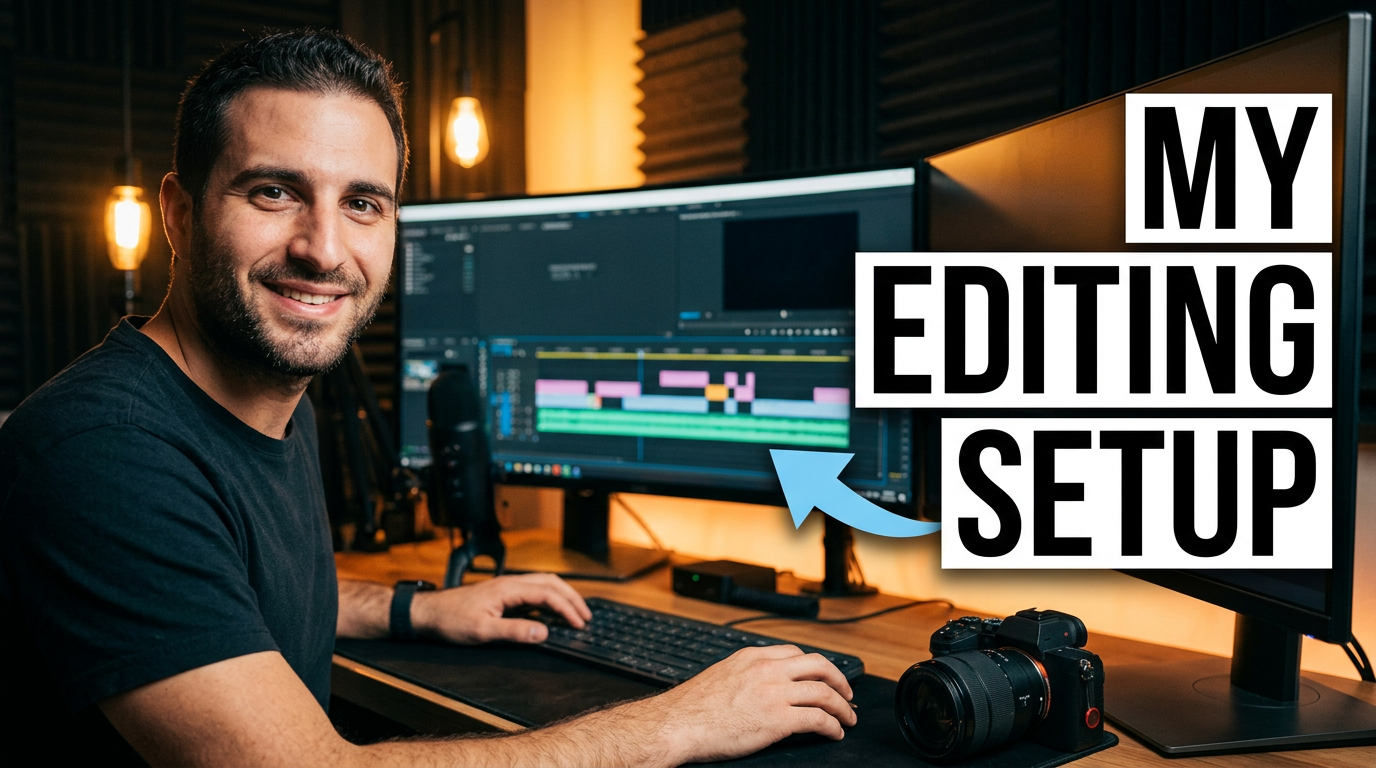
Male YouTube creator seated at a desk with a camera, microphone, and dual-monitor editing workstation

Creator workflow breakdown

Show the creator and the key pieces of a workspace for a behind-the-scenes channel video.

See the visual approach

Use the supplied male creator photo at a modern editing desk as the focal subject. Include a camera, microphone, keyboard, and dual monitors displaying an indistinct editing timeline, using supplied equipment photos if provided. Frame the workstation with warm practical lighting, neat depth in the background, and a candid behind-the-scenes atmosphere. Emphasize the creator’s face and the most recognizable gear without overcrowding the composition.

Make a thumbnail like this

These examples are starting points. Results vary based on your images, wording, and creative direction.

Thumbnail ideas for common YouTube videos

Build a clear visual hook around the promise of the video, then keep the image focused enough to read at a glance.

  • Tutorials and how-to videos
  • Product reviews and comparisons
  • Personal finance and business breakdowns
  • Gaming challenges and highlights
  • Fitness transformations and workouts
  • Beauty, fashion, and lifestyle videos
  • Travel vlogs and destination videos
  • Tech news, updates, and commentary
  • Cooking recipes and kitchen tests
  • Educational explainers and study content

A simple workflow you can reuse

  1. 1

    Start with the video’s central promise

    Choose the one question, result, surprise, comparison, or transformation viewers should understand before they read the title.

  2. 2

    Add the source material that makes it yours

    Upload a face photo, video still, product image, screenshot, logo, or reference image you want represented in the thumbnail.

  3. 3

    Set the exact on-image wording

    Enter a short phrase you want visible. Keep it direct, large, and complementary to the video title rather than repeating it.

Frequently asked questions

Answers for building a useful, repeatable thumbnail workflow—not just generating one image.

Browse all thumbnail makers
Can I use my own face in a YouTube thumbnail?

Yes. Upload a clear photo of yourself and include it as source material for the thumbnail concept. You can also use product images, screenshots, props, or visual references from the video.

How much text should a YouTube thumbnail have?

A short phrase is usually easier to scan than a sentence. Aim for a few strong words that communicate the hook, result, or tension while the video title provides more context.

Can I make thumbnails for reviews, tutorials, and vlogs?

Yes. Describe the video format and the key visual subject—such as a product, before-and-after result, destination, screen recording, or project—and tailor the composition around it.

Can I revise a thumbnail concept after I see it?

Yes. Refine the direction with plain-language changes, such as making your expression more surprised, bringing a product closer to the foreground, simplifying the background, or shifting the mood.

What source images work best?

Use well-lit photos where the main subject is clear and unobstructed. For faces, a front-facing or three-quarter view with a readable expression is especially useful. For products and screenshots, use sharp images with important details visible.

Make your next YouTube thumbnail feel like your channel

Bring your face, video assets, and a clear creative idea. Thumbnail.AI helps you shape them into a custom visual direction with the wording you choose.

Create a thumbnail in Thumbnail.AI